Back to Blog
Guides
Raluca PenciucLast updated on Apr 27, 202617 min read

Scrapy Playwright Tutorial: Scrape JavaScript-Heavy Sites at Scale

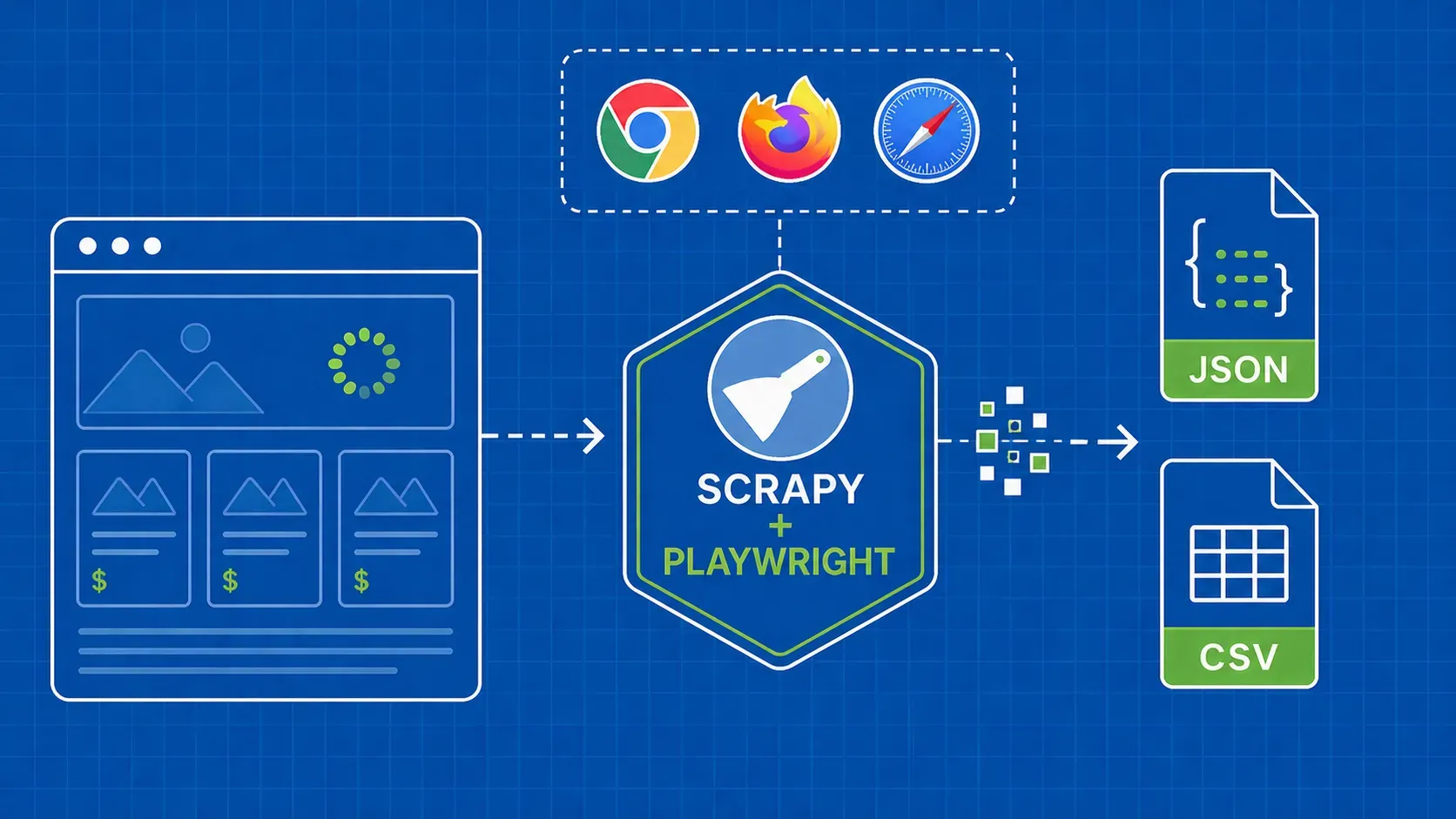
TL;DR: Scrapy-Playwright lets you render JavaScript-heavy pages directly inside Scrapy spiders by controlling real Chromium, Firefox, or WebKit browsers through Playwright. This tutorial walks you through installation, configuration, page interactions, AJAX interception, anti-detection, and a production-ready project structure so you can scrape dynamic sites without leaving the Scrapy ecosystem.

Scrapy is excellent at crawling static HTML at high speed, but the moment a target site loads content through JavaScript, a standard Scrapy request hands you an empty shell. That is exactly the problem Scrapy Playwright solves. It is a Scrapy download handler that delegates rendering to Playwright, Microsoft's browser automation library, so every response your spider receives contains the fully rendered DOM. If you have been eyeing Scrapy Playwright integration for your own projects but were not sure how all the pieces fit together, this guide covers every step: from pip install to a production-ready spider with items, pipelines, and anti-detection baked in. Along the way you will learn waiting strategies, AJAX interception, infinite scroll handling, proxy configuration, and the troubleshooting patterns that keep long crawls stable.

What Is Scrapy-Playwright and Why Use It?

Scrapy-Playwright (the PyPI package scrapy-playwright) is a Scrapy download handler that replaces the default HTTP backend with a full browser powered by Playwright. When you tag a Scrapy request with "playwright": True in its meta dictionary, the handler launches a browser page, navigates to the URL, waits for JavaScript to finish, and then hands the rendered HTML back to your parse callback as a normal Scrapy Response.

Why does this matter? A growing share of the web renders content client-side: React dashboards, Vue storefronts, pages gated behind consent modals, and sites that load product data through background API calls. Standard Scrapy fetches only the initial HTML document, which often contains placeholder <div> tags and a JavaScript bundle but none of the data you actually need. With Scrapy Playwright javascript rendering, you get the same output a real browser would display, without leaving Scrapy's familiar request/response pipeline.

When should you enable Playwright on a request? Not every URL needs a full browser. A useful rule of thumb:

  • Use a standard Scrapy request when the data you need is present in the raw HTML or available through a direct API endpoint you already know about.
  • Use a Playwright request when content is injected after page load, when you need to click or scroll to reveal data, or when the page relies on cookies and JavaScript redirects that are hard to replicate with plain HTTP.

Mixing both modes in a single spider is easy (and encouraged). You pay the browser overhead only for the requests that genuinely need it, which keeps your crawl fast for the pages that do not.

Scrapy-Playwright vs Scrapy-Splash vs Scrapy-Selenium

Choosing between browser-rendering backends for Scrapy comes down to maintenance burden, browser fidelity, and your team's existing tooling. Here is a quick comparison:

Criteria

Scrapy-Playwright

Scrapy-Splash

Scrapy-Selenium

Browser engine

Chromium, Firefox, or WebKit

Custom Qt-based renderer

Chrome or Firefox via WebDriver

Async support

Native (asyncio)

Requires a separate Splash server

Sync by default; async wrappers exist

Maintenance

Actively maintained, growing community

Splash development has slowed

Stable but relies on WebDriver protocol

JS fidelity

Full modern browser

Good, but some edge cases fail

Full modern browser

Ease of setup

pip install + playwright install

Docker container required

WebDriver binary management

Page interactions

Rich (click, fill, evaluate)

Limited Lua scripting

Full WebDriver API

If you are starting a new project today, Scrapy Playwright is generally the strongest choice. It offers modern async support, first-class page interaction methods, and avoids the operational overhead of running a separate rendering service. For a deeper dive into Scrapy versus Selenium trade-offs, the comparison guide on Scrapy vs. Selenium covers the topic in detail.

Installation and Project Setup

Getting a Scrapy Playwright project running takes a few terminal commands. Here is the step-by-step process.

Prerequisites: You need Python 3.8 or later and pip. A virtual environment is strongly recommended to keep dependencies isolated.

# Create and activate a virtual environment
python -m venv venv
source venv/bin/activate  # Windows: venv\Scripts\activate

# Install Scrapy and scrapy-playwright
pip install scrapy scrapy-playwright

# Install browser binaries (Chromium is the default)
playwright install chromium

The playwright install chromium command downloads a specific Chromium build that Playwright manages internally. You can also install firefox or webkit if your use case calls for a different engine.

Next, scaffold a new Scrapy project:

scrapy startproject myproject
cd myproject
scrapy genspider example example.com

This gives you the standard Scrapy directory layout: settings.py, items.py, pipelines.py, middlewares.py, and a spiders/ folder. The only Playwright-specific step left is updating settings.py, which we cover next.

One thing worth noting: scrapy-playwright depends on Playwright's async API, which in turn requires the asyncio-based Twisted reactor. Scrapy supports this, but you must explicitly set the reactor before Scrapy tries to use its default. Forgetting this step is the number-one installation mistake developers hit.

Configuring Scrapy Settings for Playwright

Open your project's settings.py and add the following:

# settings.py

DOWNLOAD_HANDLERS = {
    "http": "scrapy_playwright.handler.ScrapyPlaywrightDownloadHandler",
    "https": "scrapy_playwright.handler.ScrapyPlaywrightDownloadHandler",
}

TWISTED_REACTOR = "twisted.internet.asyncioreactor.AsyncioSelectorReactor"

# Optional: choose browser type (chromium, firefox, webkit)
PLAYWRIGHT_BROWSER_TYPE = "chromium"

# Optional: global navigation timeout in milliseconds
PLAYWRIGHT_DEFAULT_NAVIGATION_TIMEOUT = 30000

The DOWNLOAD_HANDLERS dict tells Scrapy to route all HTTP and HTTPS requests through the Playwright handler. The TWISTED_REACTOR line switches Scrapy's event loop to asyncio, which Playwright requires.

PLAYWRIGHT_DEFAULT_NAVIGATION_TIMEOUT sets the maximum time (in milliseconds) the browser will wait for a page to load. The default is 30 seconds, which is fine for most sites. If you are scraping especially slow pages, bump it up. If you want fast failure on broken URLs, lower it.

Two other settings worth knowing:

  • PLAYWRIGHT_LAUNCH_OPTIONS: a dictionary passed directly to playwright.chromium.launch(). Use it for headless mode toggling, executable paths, or global proxy configuration.
  • PLAYWRIGHT_MAX_PAGES_PER_CONTEXT: limits how many pages share a single browser context before a new context is created. This can help with memory management on large crawls.

With these settings in place, every Scrapy request that includes "playwright": True in its meta will be rendered by Playwright. Requests without that flag still go through Scrapy's standard downloader, so you get the best of both worlds.

Rendering JavaScript-Heavy Pages

Let's write your first Scrapy Playwright spider. The goal: visit a page that loads its content with JavaScript and extract data from the fully rendered DOM.

import scrapy

class QuotesSpider(scrapy.Spider):
    name = "quotes"
    start_urls = ["https://quotes.toscrape.com/js/"]

    def start_requests(self):
        for url in self.start_urls:
            yield scrapy.Request(
                url,
                meta={"playwright": True},
                callback=self.parse,
            )

    def parse(self, response):
        for quote in response.css("div.quote"):
            yield {
                "text": quote.css("span.text::text").get(),
                "author": quote.css("small.author::text").get(),
            }

The key line is meta={"playwright": True}. That single flag tells the download handler to launch a browser page, navigate to the URL, wait for the load event, and return the rendered HTML as a TextResponse. Inside parse, you use the same CSS selectors (or XPath) you would use with any Scrapy spider. Nothing changes on the parsing side.

Run the spider with scrapy crawl quotes, and you should see fully extracted quotes even though the page relies on JavaScript to inject them into the DOM. If you tried the same URL with a standard Scrapy request (without the Playwright flag), response.css("div.quote") would return an empty list.

This pattern is the foundation for everything else in this Scrapy Playwright tutorial. Every technique that follows builds on the same meta dictionary to pass additional instructions to the browser.

Page Interactions: Clicks, Scrolling, and Form Submissions

Real-world scraping rarely involves just loading a page. You often need to click buttons, fill in search forms, or scroll to trigger lazy-loaded content. Scrapy Playwright page methods handle all of this through the playwright_page_methods key in the request meta.

A PageMethod is a wrapper around a Playwright page action. You pass a list of them, and the handler executes each one in order after the initial navigation.

Clicking a button:

from scrapy_playwright.page import PageMethod

yield scrapy.Request(
    url,
    meta={
        "playwright": True,
        "playwright_page_methods": [
            PageMethod("click", selector="button#load-more"),
            PageMethod("wait_for_selector", selector="div.new-content"),
        ],
    },
    callback=self.parse,
)

Filling and submitting a form:

yield scrapy.Request(
    url,
    meta={
        "playwright": True,
        "playwright_page_methods": [
            PageMethod("fill", selector="input#search", value="python scrapy"),
            PageMethod("click", selector="button[type=submit]"),
            PageMethod("wait_for_selector", selector="div.results"),
        ],
    },
    callback=self.parse,
)

Scrolling to the bottom of a page:

yield scrapy.Request(
    url,
    meta={
        "playwright": True,
        "playwright_page_methods": [
            PageMethod(
                "evaluate",
                "window.scrollTo(0, document.body.scrollHeight)",
            ),
            PageMethod("wait_for_timeout", 2000),
        ],
    },
    callback=self.parse,
)

Notice the pattern: you chain PageMethod calls to simulate a real user session. The handler processes them sequentially, so order matters. Always include a wait after an action that triggers new content (a click that fires an API call, a scroll that loads more items) to give the page time to update before Scrapy captures the final HTML.

One practical tip: keep your playwright_page_methods list as short as possible. Each method call adds latency. If you can accomplish the same result with fewer steps (for example, navigating directly to a filtered URL instead of filling a form), prefer the simpler approach.

Waiting Strategies for Dynamic Content

Choosing the right waiting strategy is critical for reliable Scrapy Playwright dynamic content scraping. Wait too little and you get incomplete data. Wait too much and your crawl grinds to a halt.

Here are the main approaches:

wait_for_selector is the most precise option. It pauses execution until a specific CSS selector appears in the DOM.

PageMethod("wait_for_selector", selector="div.product-list")

Use this when you know exactly which element signals that the data has loaded. It is fast because it resolves the moment the element exists, rather than waiting for an arbitrary duration.

wait_for_load_state waits for a particular page lifecycle event:

  • "load": fires when the initial HTML and all resources (images, stylesheets) have loaded.
  • "domcontentloaded": fires when the HTML is parsed, before images finish.
  • "networkidle": fires when there have been no network connections for at least 500 ms.
PageMethod("wait_for_load_state", "networkidle")

networkidle is tempting because it catches most AJAX calls, but it can be unreliable on pages with persistent WebSocket connections, analytics pings, or ad trackers that keep the network busy. It also tends to be slower than wait_for_selector.

wait_for_timeout is a hard sleep, specified in milliseconds.

PageMethod("wait_for_timeout", 3000)

This is the bluntest tool. Use it only as a last resort, for example on pages where no stable selector exists and networkidle is flaky. Hard sleeps waste time on fast pages and still might not be long enough on slow ones.

Recommendation: default to wait_for_selector whenever possible. Fall back to networkidle for pages where you do not know the exact selector. Reserve wait_for_timeout for genuinely unpredictable pages, and keep the value as low as you can.

Handling Infinite Scroll and Pagination

Many modern sites use Scrapy Playwright infinite scroll patterns or paginated navigation to split content across multiple views. Handling both inside Scrapy requires slightly different strategies.

Infinite scroll typically works by scrolling to the bottom of the page, waiting for new items to load, and repeating until no more items appear. Since playwright_page_methods runs once before returning the response, you need to handle the scroll loop inside a page.evaluate call or by accessing the Playwright page object directly.

The cleanest approach is to use the playwright_page meta key to get the raw Playwright page and script the loop yourself:

async def parse(self, response):
    page = response.meta["playwright_page"]
    previous_height = 0

    while True:
        await page.evaluate("window.scrollTo(0, document.body.scrollHeight)")
        await page.wait_for_timeout(1500)
        current_height = await page.evaluate("document.body.scrollHeight")
        if current_height == previous_height:
            break
        previous_height = current_height

    # Re-read the fully scrolled page content
    content = await page.content()
    await page.close()

    sel = scrapy.Selector(text=content)
    for item in sel.css("div.item"):
        yield {
            "title": item.css("h3::text").get(),
        }

Notice we close the page explicitly with await page.close(). This is essential for memory management; otherwise, browser pages accumulate and your process balloons in memory.

Pagination (click-next or URL-based) is simpler. If the site uses query parameters (?page=2), just yield new Scrapy requests with incremented URLs. If it relies on a "Next" button, use a PageMethod click:

def parse(self, response):
    # Extract data from current page
    for product in response.css("div.product"):
        yield {"name": product.css("h2::text").get()}

    # Follow next page if it exists
    next_button = response.css("a.next-page::attr(href)").get()
    if next_button:
        yield response.follow(
            next_button,
            meta={"playwright": True},
            callback=self.parse,
        )

For sites that use JavaScript-only "Load More" buttons without changing the URL, combine the click pattern from the page interactions section with a wait_for_selector to confirm new items appeared before extracting data.

Intercepting AJAX Requests

Sometimes the cleanest data source is not the rendered DOM but the background API call the page makes to populate it. Scrapy Playwright AJAX interception lets you capture those responses directly, often giving you structured JSON without any HTML parsing.

To intercept responses, you need access to the Playwright page object and its response event:

import json

class AjaxSpider(scrapy.Spider):
    name = "ajax_products"
    captured_data = []

    def start_requests(self):
        yield scrapy.Request(
            "https://example.com/products",
            meta={
                "playwright": True,
                "playwright_include_page": True,
            },
            callback=self.parse,
        )

    async def parse(self, response):
        page = response.meta["playwright_page"]

        async def handle_response(resp):
            if "/api/products" in resp.url:
                body = await resp.json()
                self.captured_data.extend(body.get("items", []))

        page.on("response", handle_response)

        # Trigger the AJAX call (e.g., scroll or click)
        await page.evaluate("window.scrollTo(0, document.body.scrollHeight)")
        await page.wait_for_timeout(3000)
        await page.close()

        for product in self.captured_data:
            yield product

The page.on("response", ...) listener fires for every network response. You filter by URL pattern to grab only the API calls you care about. The response body is already parsed (.json() or .text()), so you skip DOM traversal entirely.

This technique is especially powerful for single-page applications where the frontend makes multiple paginated API requests as you scroll. Instead of parsing complex HTML, you get clean, structured data straight from the source.

Running Custom JavaScript and Taking Screenshots

Two lightweight but useful Scrapy Playwright capabilities are custom JavaScript execution and screenshot capture. They serve different purposes but share the same mechanism: direct access to the Playwright page object.

Running custom JavaScript with page.evaluate lets you extract data that is buried in JavaScript variables or manipulate the page state before Scrapy reads the HTML:

yield scrapy.Request(
    url,
    meta={
        "playwright": True,
        "playwright_page_methods": [
            PageMethod(
                "evaluate",
                "document.querySelectorAll('.popup-overlay')"
                ".forEach(el => el.remove())",
            ),
        ],
    },
    callback=self.parse,
)

This removes popup overlays before Scrapy parses the page, which is handy for sites that throw modals on first visit.

Taking a Scrapy Playwright screenshot is useful for debugging rendering issues. If your spider extracts empty data, a screenshot shows you exactly what the browser saw:

yield scrapy.Request(
    url,
    meta={
        "playwright": True,
        "playwright_page_methods": [
            PageMethod("screenshot", path="debug.png", full_page=True),
        ],
    },
    callback=self.parse,
)

The full_page=True argument captures the entire scrollable area, not just the viewport. During development, you can enable screenshots conditionally (only when a parse callback finds zero items, for example) to avoid filling your disk on production crawls.

Aborting Unwanted Requests for Faster Crawls

Every browser page loads images, fonts, CSS, analytics scripts, and ad trackers by default. For scraping, most of these resources are dead weight. Blocking them can dramatically reduce bandwidth usage and speed up page loads.

Scrapy-Playwright supports request interception through the PLAYWRIGHT_ABORT_REQUEST setting. You define an async function that inspects each request and returns True to abort it:

# settings.py
PLAYWRIGHT_ABORT_REQUEST = "myproject.utils.should_abort"
# myproject/utils.py
from playwright.async_api import Request as PlaywrightRequest

async def should_abort(request: PlaywrightRequest) -> bool:
    blocked_types = {"image", "font", "stylesheet", "media"}
    if request.resource_type in blocked_types:
        return True
    blocked_domains = ["google-analytics.com", "doubleclick.net"]
    if any(domain in request.url for domain in blocked_domains):
        return True
    return False

Blocking images and fonts alone can cut page load time significantly, especially on media-heavy e-commerce sites. Just be careful not to block JavaScript files that are responsible for rendering the content you need. If your data disappears after enabling request blocking, add "script" back to the allowed types and narrow your filter to specific domains instead.

Using Proxies with Scrapy-Playwright

When scraping at scale, rotating proxies are essential for avoiding IP bans. Scrapy Playwright proxy configuration works at two levels: global and per-request.

Global proxy applies to every Playwright request. Set it in settings.py:

PLAYWRIGHT_LAUNCH_OPTIONS = {
    "proxy": {
        "server": "http://proxy-server:8080",
        "username": "user",
        "password": "pass",
    },
}

This passes the proxy configuration to the browser launch call, so every page opened by this browser instance routes through that proxy.

Per-request proxy gives you finer control. Use playwright_context_kwargs in the request meta to assign different proxies to individual requests:

yield scrapy.Request(
    url,
    meta={
        "playwright": True,
        "playwright_context_kwargs": {
            "proxy": {
                "server": "http://different-proxy:9090",
            },
        },
        "playwright_context": "proxy_context_1",
    },
    callback=self.parse,
)

Each unique playwright_context name creates a separate browser context with its own proxy, cookies, and storage state. This is how you isolate sessions when rotating through a proxy pool.

For production crawls, consider services that manage proxy rotation and CAPTCHA solving behind a single endpoint, so your spider logic stays clean. The key point is that Scrapy-Playwright's proxy support is flexible enough to integrate with whatever rotation strategy you choose.

Anti-Detection and Stealth Best Practices

Proxies alone are not enough. Modern anti-bot systems check browser fingerprints, user-agent strings, and behavioral patterns. Here are the anti-detection layers you should consider for your Scrapy Playwright spiders.

User-agent rotation: Set a realistic, rotating user-agent per context:

import random

USER_AGENTS = [
    "Mozilla/5.0 (Windows NT 10.0; Win64; x64) AppleWebKit/537.36 ...",
    "Mozilla/5.0 (Macintosh; Intel Mac OS X 10_15_7) AppleWebKit/537.36 ...",
    # Add more real browser UA strings
]

yield scrapy.Request(
    url,
    meta={
        "playwright": True,
        "playwright_context_kwargs": {
            "user_agent": random.choice(USER_AGENTS),
        },
        "playwright_context": f"ctx_{random.randint(1, 100)}",
    },
    callback=self.parse,
)

Fingerprint reduction: Playwright's Chromium has default WebDriver flags that anti-bot scripts detect. You can reduce your fingerprint by:

  • Passing "args": ["--disable-blink-features=AutomationControlled"] in PLAYWRIGHT_LAUNCH_OPTIONS.
  • Using page.evaluate to delete the navigator.webdriver property.
  • Setting a realistic viewport size rather than the default headless dimensions.

Random delays: Adding jitter between requests prevents your traffic from looking like a bot hammering the server at machine speed. Use Scrapy's DOWNLOAD_DELAY setting combined with RANDOMIZE_DOWNLOAD_DELAY:

DOWNLOAD_DELAY = 2
RANDOMIZE_DOWNLOAD_DELAY = True

Stealth context setup: Combine all of the above into a reusable context configuration. For a comprehensive guide on avoiding blocks, the tips to avoid getting blocked or IP banned when web scraping resource covers additional strategies that apply beyond Scrapy-Playwright.

The bottom line: treat anti-detection as multiple layers rather than a single solution. Proxies handle IP reputation. User-agent rotation handles header-level checks. Fingerprint reduction handles JavaScript-level checks. Delays handle behavioral checks. You need all of them working together.

Browser Contexts, Sessions, and Resource Management

A browser context in Playwright is an isolated browser session with its own cookies, local storage, and cache. Scrapy-Playwright uses contexts heavily, and understanding them is key to managing resources on large crawls.

By default, every Scrapy Playwright request that does not specify a playwright_context name shares a default context. This means cookies persist across requests, which is fine for sites where you need to stay logged in but problematic if you want clean sessions per request.

Named contexts let you isolate sessions:

yield scrapy.Request(
    url,
    meta={
        "playwright": True,
        "playwright_context": "session_a",
    },
    callback=self.parse,
)

All requests tagged "session_a" share cookies and state. Requests tagged "session_b" get a completely separate session. This is useful for parallel scraping workflows where you need to simulate multiple independent users.

PLAYWRIGHT_MAX_PAGES_PER_CONTEXT controls how many pages can be open simultaneously within a single context. When the limit is reached, a new context is created. Tuning this setting helps prevent memory bloat:

PLAYWRIGHT_MAX_PAGES_PER_CONTEXT = 4

Memory management tips:

  • Always close pages when using playwright_include_page. If you forget await page.close() in your parse method, pages accumulate and memory usage grows linearly with the number of requests.
  • Use CONCURRENT_REQUESTS to cap parallelism. Browsers are resource-hungry; 8 to 16 concurrent Playwright requests is a reasonable starting point on a machine with 8 GB of RAM.
  • Monitor your spider's RSS memory during test runs. If it climbs steadily, check for unclosed pages or excessive context creation.

For headless browser scraping workflows more generally, the guide on running a headless browser with Python discusses resource patterns that complement what we cover here.

Troubleshooting and Error Handling

Even well-configured Scrapy Playwright spiders can fail at scale. Here are the most common issues and actionable fixes.

TimeoutError: This is the error you will see most often. It means the browser could not complete navigation or a wait within the allowed time.

  • Increase PLAYWRIGHT_DEFAULT_NAVIGATION_TIMEOUT for slow sites.
  • Switch from networkidle to wait_for_selector to avoid hanging on persistent connections.
  • Check if the target site is blocking you (a screenshot of the timeout page often reveals a CAPTCHA or block page).

Browser disconnections: If the browser process crashes mid-crawl, you will see BrowserError or Connection closed exceptions.

  • Reduce CONCURRENT_REQUESTS. Too many parallel pages can exhaust system memory and crash the browser.
  • Set PLAYWRIGHT_MAX_PAGES_PER_CONTEXT to a lower value.
  • Add "args": ["--disable-dev-shm-usage"] to PLAYWRIGHT_LAUNCH_OPTIONS when running in Docker, where /dev/shm is often too small.

Memory leaks: Your spider's memory usage creeps up during long crawls.

  • Verify you are closing all pages obtained via playwright_include_page. Every unclosed page holds a full DOM in memory.
  • Limit PLAYWRIGHT_MAX_PAGES_PER_CONTEXT and periodically restart contexts.
  • Use CLOSESPIDER_PAGECOUNT or a custom extension to restart the spider after a threshold.

Errback patterns: Use Scrapy's errback to handle failures gracefully instead of letting them crash the spider:

yield scrapy.Request(
    url,
    meta={"playwright": True, "playwright_include_page": True},
    callback=self.parse,
    errback=self.handle_error,
)

async def handle_error(self, failure):
    page = failure.request.meta.get("playwright_page")
    if page:
        await page.close()
    self.logger.error(f"Request failed: {failure.request.url}")

The key detail: if you requested playwright_include_page, you must close the page in both the callback and the errback. Otherwise, a failed request leaks a page object. Combine errbacks with Scrapy's built-in RETRY_TIMES setting to automatically retry transient failures before giving up.

Debugging with traces: Playwright supports trace recording, which captures a full timeline of network requests, DOM snapshots, and actions. Enable it through PLAYWRIGHT_LAUNCH_OPTIONS during development to replay exactly what the browser did on a problematic page.

Building a Production-Ready Spider

Tutorials often stop after showing you how to extract data. In production, you need a complete project structure with items, pipelines, middlewares, and well-tuned settings. Here is how to wire everything together for a Scrapy Playwright project.

Define your items:

# items.py
import scrapy

class ProductItem(scrapy.Item):
    name = scrapy.Field()
    price = scrapy.Field()
    url = scrapy.Field()

Using Item classes (or dataclass items in newer Scrapy versions) gives you schema validation and makes your pipeline code cleaner than passing raw dicts.

Write an item pipeline for validation and storage:

# pipelines.py
class ValidateProductPipeline:
    def process_item(self, item, spider):
        if not item.get("name"):
            raise scrapy.exceptions.DropItem("Missing name")
        item["price"] = float(item["price"].replace("$", "").strip())
        return item

class JsonWriterPipeline:
    def open_spider(self, spider):
        import json
        self.file = open("products.jsonl", "w")

    def close_spider(self, spider):
        self.file.close()

    def process_item(self, item, spider):
        import json
        self.file.write(json.dumps(dict(item)) + "\n")
        return item

Production settings checklist:

# settings.py (additions for production)
ITEM_PIPELINES = {
    "myproject.pipelines.ValidateProductPipeline": 100,
    "myproject.pipelines.JsonWriterPipeline": 200,
}

CONCURRENT_REQUESTS = 8
DOWNLOAD_DELAY = 1.5
RANDOMIZE_DOWNLOAD_DELAY = True
RETRY_TIMES = 3
LOG_LEVEL = "INFO"

PLAYWRIGHT_MAX_PAGES_PER_CONTEXT = 4
PLAYWRIGHT_DEFAULT_NAVIGATION_TIMEOUT = 30000

The production-ready pattern is: structured items flow through validation pipelines, settings cap concurrency to a level your machine and target site can handle, and retry logic plus errbacks catch transient failures. Scrapy's built-in stats collector gives you per-crawl metrics (items scraped, errors, retries) without extra code.

For teams that want web scraping fundamentals with Scrapy before layering on Playwright, the guide on web scraping with Scrapy provides a solid foundation.

Key Takeaways

  • Enable Playwright selectively. Only tag requests with "playwright": True when the page genuinely requires JavaScript rendering; mix standard Scrapy requests for everything else to keep crawls fast.
  • Use wait_for_selector over networkidle or hard sleeps. Selector-based waiting is faster and more reliable for most dynamic content scenarios.
  • Intercept AJAX calls when possible. Capturing background API responses gives you clean JSON and avoids brittle DOM selectors.
  • Layer anti-detection: proxies, user-agent rotation, fingerprint reduction, and random delays should work together, not replace each other.
  • Close every page you open. Memory leaks from unclosed Playwright pages are the most common cause of instability in long-running Scrapy Playwright crawls.

FAQ

Does Scrapy-Playwright support Firefox and WebKit, or only Chromium?

Yes, all three engines are supported. Set PLAYWRIGHT_BROWSER_TYPE to "firefox" or "webkit" in your Scrapy settings and run playwright install firefox (or webkit) to download the corresponding browser binary. Chromium is the default and the most widely tested, but Firefox can be useful for sites that fingerprint Chromium specifically.

How do I fix TimeoutError exceptions in Scrapy-Playwright?

Start by increasing PLAYWRIGHT_DEFAULT_NAVIGATION_TIMEOUT beyond the 30-second default. If the timeout persists, switch your waiting strategy from networkidle to wait_for_selector targeting a specific element. Also take a screenshot of the failing page to check whether the site is serving a CAPTCHA or block page rather than the expected content.

Can I run Scrapy-Playwright in headful (visible browser) mode for debugging?

Yes. Add "headless": False to PLAYWRIGHT_LAUNCH_OPTIONS in settings.py. The browser window will open visibly, letting you watch each navigation and interaction in real time. This is invaluable for debugging page-method sequences. Remember to switch back to headless mode before running production crawls.

How much memory does Scrapy-Playwright use, and how can I reduce consumption?

Each Chromium page consumes roughly 50 to 150 MB of RAM depending on page complexity. To reduce memory, lower CONCURRENT_REQUESTS, set PLAYWRIGHT_MAX_PAGES_PER_CONTEXT to a small number (3 to 5), abort unnecessary resource types (images, fonts, stylesheets), and always close pages explicitly in both your callback and errback methods.

What is the difference between Scrapy-Playwright, Scrapy-Splash, and Scrapy-Selenium?

Scrapy-Playwright uses Playwright's modern async API with Chromium, Firefox, or WebKit. Scrapy-Splash relies on a separate Docker-based rendering service with limited interactivity. Scrapy-Selenium wraps the older WebDriver protocol. For new projects, Scrapy-Playwright generally offers the best combination of browser fidelity, async performance, and active maintenance.

Conclusion

Scrapy Playwright bridges the gap between Scrapy's powerful crawling engine and the reality of today's JavaScript-driven web. By adding a single meta flag to your requests, you get full browser rendering without abandoning Scrapy's pipelines, middleware, and concurrency model. This tutorial covered the full spectrum: from initial setup and configuration through page interactions, AJAX interception, anti-detection, and production-hardening.

The techniques here should handle the vast majority of dynamic scraping scenarios. For projects where managing browser infrastructure, proxy rotation, and anti-detection at scale becomes the bottleneck rather than the scraping logic itself, our Scraper API handles those layers behind a single endpoint so you can focus on the data instead of the plumbing.

Whatever approach you choose, the core principle remains the same: use browser rendering only where it is necessary, keep your spiders well-structured, and close every page you open.

About the Author
Raluca Penciuc, Full-Stack Developer @ WebScrapingAPI
Raluca PenciucFull-Stack Developer

Raluca Penciuc is a Full Stack Developer at WebScrapingAPI, building scrapers, improving evasions, and finding reliable ways to reduce detection across target websites.

Start Building

Ready to Scale Your Data Collection?

Join 2,000+ companies using WebScrapingAPI to extract web data at enterprise scale with zero infrastructure overhead.