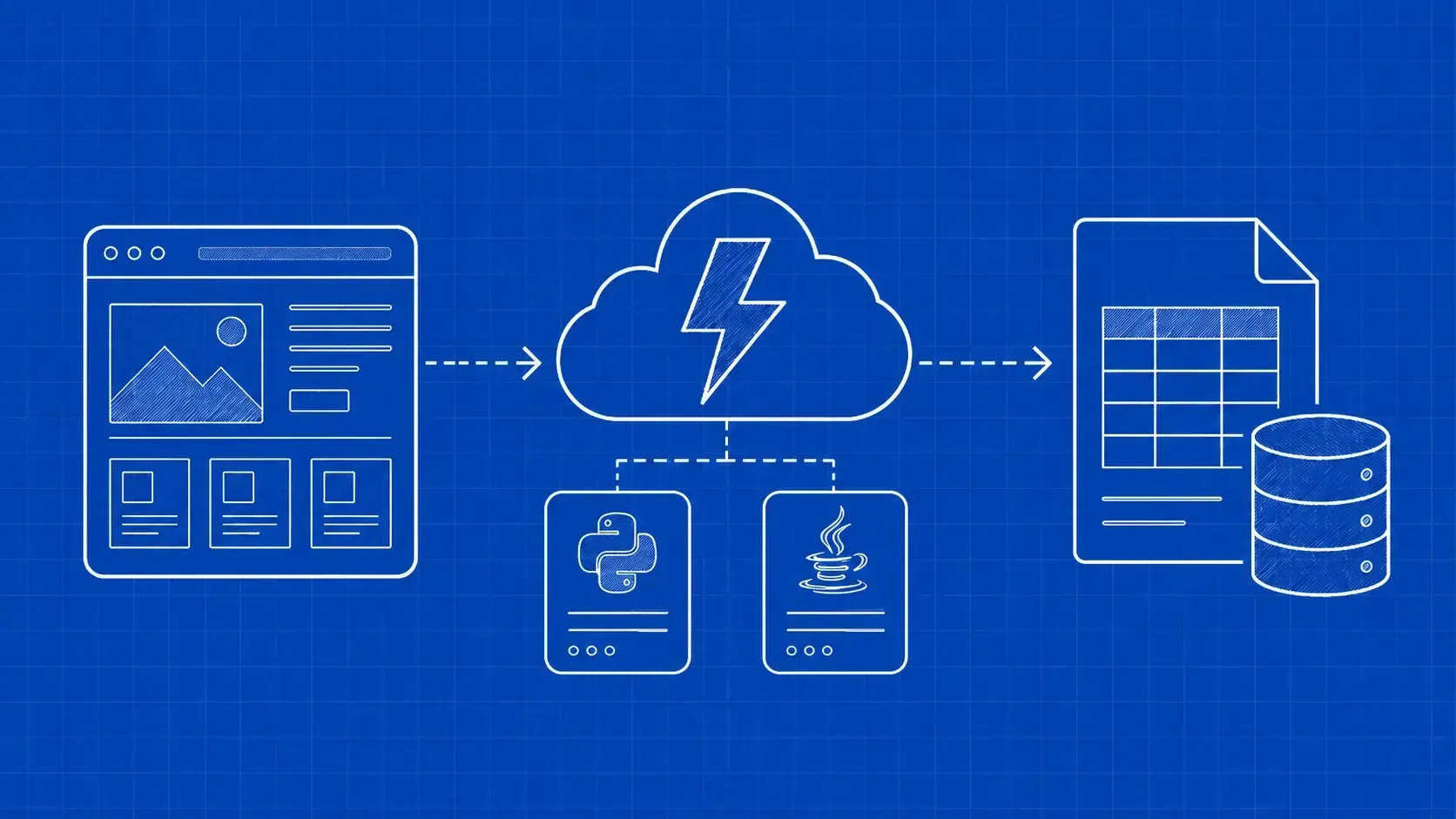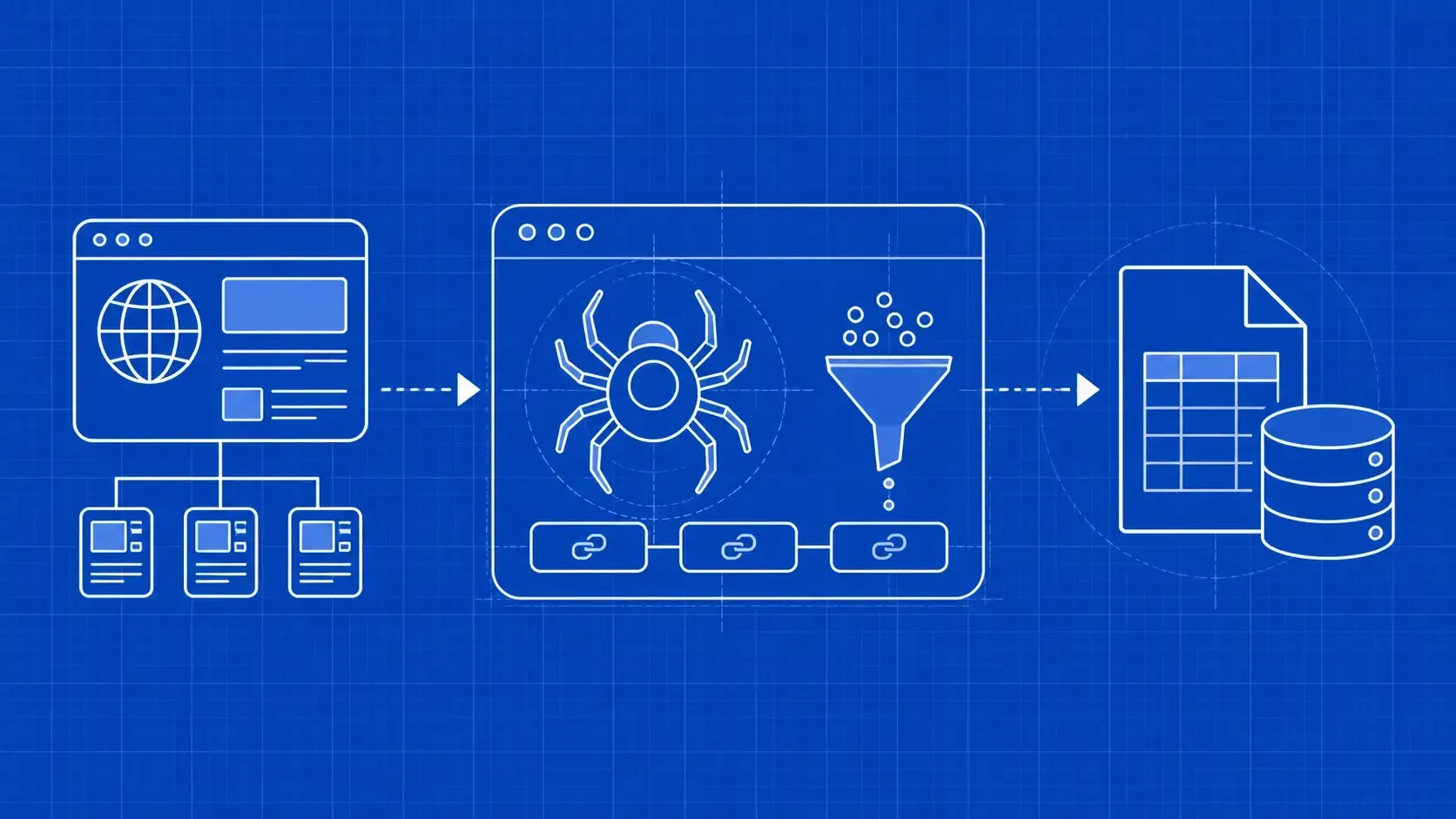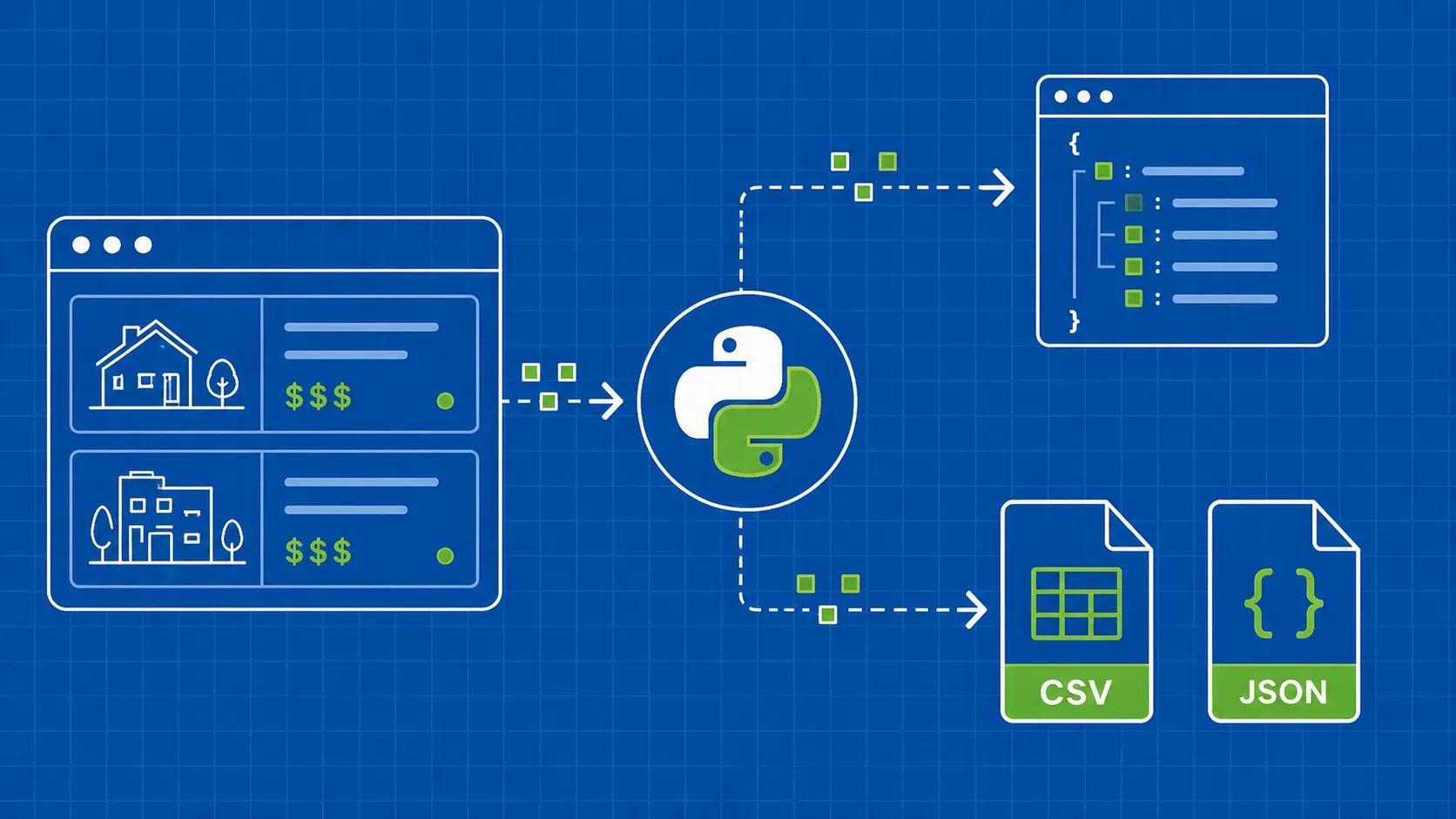
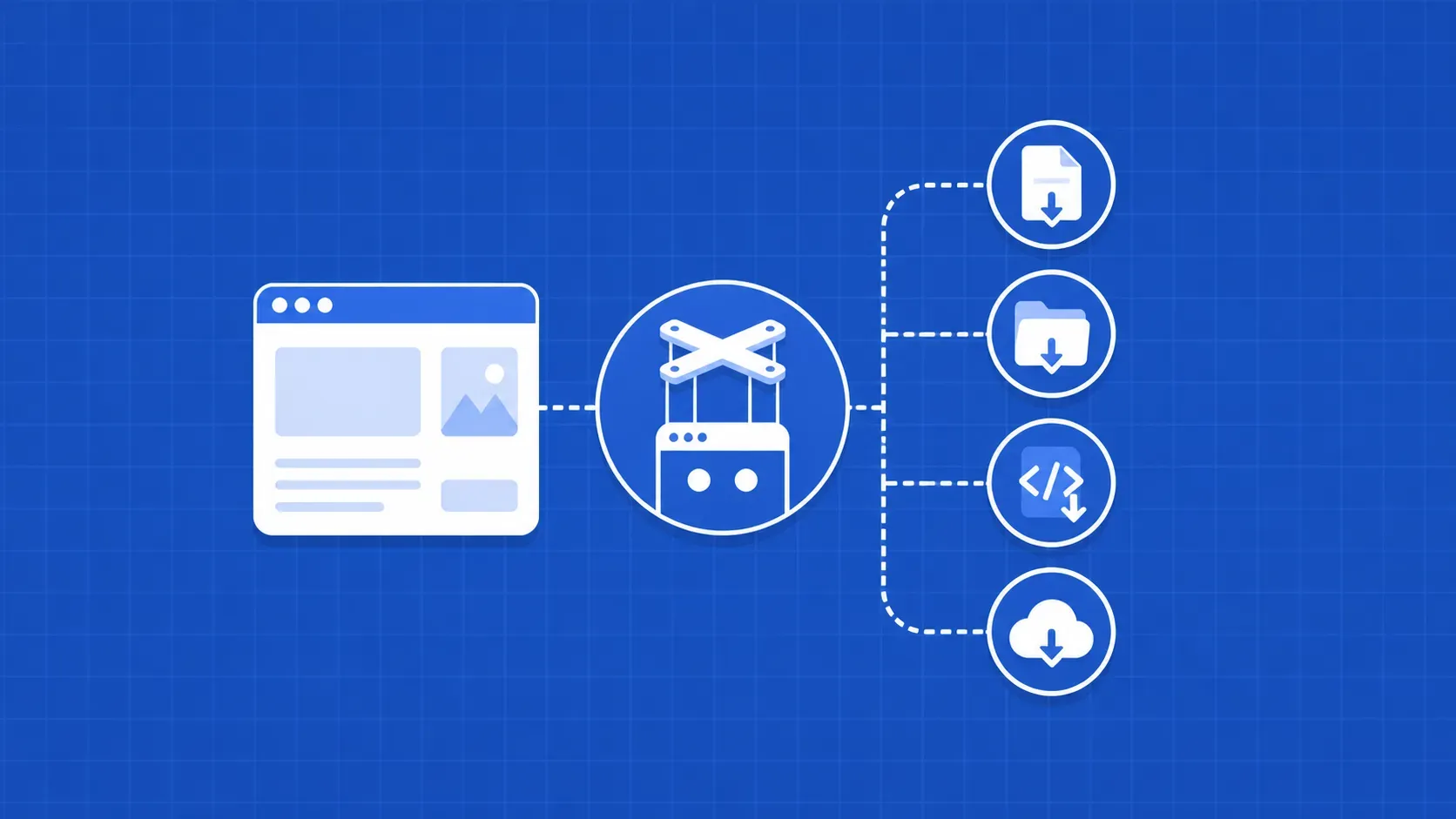
TL;DR: A Puppeteer download file workflow has four good shapes: click a button and let Chrome write to a folder you control, run fetch() inside the page and pipe base64 back to Node, drive the Chrome DevTools Protocol with download progress events, or skip the browser and pull the URL with Axios using cookies harvested from the Puppeteer session. Pick by file size, auth, and how the site exposes the link.Introduction
If you have ever tried to script a Puppeteer download file flow against a real production site, you already know the moment of truth: the script clicks the download button, the headless Chrome instance reports success, and the disk stays empty. That happens because Chromium blocks automated downloads by default in headless mode, and the fix is not in Puppeteer's high-level API. It lives one layer down, in the Chrome DevTools Protocol.
This guide is for mid-level Node.js developers, QA engineers, and scraping practitioners who already know how to launch a browser, navigate a page, and select an element, and now need to capture the actual bytes. We are going to walk through four bounded methods, each with complete code, and we will be honest about which one belongs in which situation.
You will see the same baseline harness reused everywhere: a download folder created with fs.mkdirSync, a realistic User-Agent, a desktop viewport, and a pattern for waiting until the file is actually on disk and not still being written. By the end you will have a Puppeteer download file recipe for click-triggered downloads, auth-gated downloads, large binary payloads, and known URLs, plus a decision rubric for picking between them and a hardening checklist for production.
Why downloading files with Puppeteer is trickier than it looks
When you call page.click() on a "Download CSV" button in headed Chrome, the file lands in your Downloads folder and you move on with your day. Run the same script with headless: 'new' and nothing happens. The click fires, the network request goes out, and your filesystem stays empty. That is not a Puppeteer bug. Chromium intentionally treats automated downloads as suspicious, and the fix lives in the Chrome DevTools Protocol rather than in Puppeteer's surface API. Until you flip that switch, no Puppeteer download file flow will ever leave a byte on disk.
There is no single best way to handle this. The right approach depends on how the site exposes the file, how strict its auth is, how large the payload is, and how much reliability you need. Four patterns cover almost every case:
- Click plus
setDownloadBehavior. Configure the browser's download directory through CDP, click the button, and poll for completion. Best when the download is JavaScript-triggered and you do not have, or do not want to chase, the underlying URL. - In-page
fetch()plus base64. Runfetch()insidepage.evaluate(), encode the response, and ship it back to Node as base64. Best for SPAs, blob URLs, and downloads gated by cookies that only exist inside the browser context. - Pure CDP with download events. Open a CDP session, call
Browser.setDownloadBehavior, and listen toBrowser.downloadWillBeginandBrowser.downloadProgress. Best when you need real-time progress, GUID-to-filename mapping, or fine-grained error detection. - Hand the URL to Axios or
https. Use Puppeteer to render the page and extract the real file URL, then download from Node with the cookies and headers you harvested from the Puppeteer session. Best for large files, parallel jobs, and any time the browser is just in the way.
The rest of this guide is one section per method, plus a decision rubric, a hardening checklist, and a Puppeteer-versus-Playwright reality check at the end.
Prerequisites and project setup
Before we get into individual methods, we need a project that all four can share. The harness here is intentionally boring: a folder, a package.json, a downloads directory, and a single launch.js file we will reuse in every example. Keeping the harness consistent lets you swap one method for another without touching the rest of your code, and it makes the difference between methods very obvious when you compare them side by side.
The setup notes target Node.js 20 or newer at the time of writing; check the current Puppeteer release notes if you are pinning to an older runtime, since the minimum supported Node.js version moves with each major Puppeteer release.
Installing Puppeteer, Node.js basics, and folder layout
Create a project, initialize npm, and install Puppeteer:
mkdir puppeteer-downloads
cd puppeteer-downloads
npm init -y
npm install puppeteer
Open package.json and add "type": "module" so we can use import syntax in the examples. While you are there, add a few dev conveniences:
{
  "type": "module",
  "scripts": {
    "method1": "node method1.js",
    "method2": "node method2.js",
    "method3": "node method3.js",
    "method4": "node method4.js"
  }
}
Puppeteer ships with Chrome for Testing and downloads it during install on most platforms, which is enough for everything in this guide. If you are running in a stripped-down container, confirm the install behavior in the Puppeteer release notes for the version you pinned, because the bundled-Chrome behavior has shifted across releases.
Folder layout:
puppeteer-downloads/
  downloads/        # files end up here
  launch.js         # shared harness
  method1.js
  method2.js
  method3.js
  method4.js
Create the downloads/ folder now (mkdir downloads), or let the launch script create it on first run.
A baseline launch script with download path, User-Agent, and viewport
Every method in this guide starts from the same harness. Drop this into launch.js:
// launch.js
import puppeteer from 'puppeteer';
import fs from 'fs';
import path from 'path';
import { fileURLToPath } from 'url';

const __dirname = path.dirname(fileURLToPath(import.meta.url));

export const DOWNLOAD_DIR = path.resolve(__dirname, 'downloads');

export async function launchBrowser({ headless = 'new' } = {}) {
  // setDownloadBehavior requires an absolute path. Relative paths silently fail.
  if (!fs.existsSync(DOWNLOAD_DIR)) {
    fs.mkdirSync(DOWNLOAD_DIR, { recursive: true });
  }

  const browser = await puppeteer.launch({
    headless,
    args: [
      '--no-sandbox',
      '--disable-dev-shm-usage',
      '--disable-blink-features=AutomationControlled',
    ],
  });

  return browser;
}

export async function newPage(browser) {
  const page = await browser.newPage();

  // Realistic desktop fingerprint. Some sites hide download buttons on mobile.
  await page.setUserAgent(
    'Mozilla/5.0 (Windows NT 10.0; Win64; x64) AppleWebKit/537.36 ' +
    '(KHTML, like Gecko) Chrome/124.0.0.0 Safari/537.36'
  );
  await page.setViewport({ width: 1366, height: 900 });

  return page;
}
Three things to notice. First, setDownloadBehavior requires an absolute path; if you pass a relative path, Chrome silently ignores it and writes nothing. Second, we force a desktop User-Agent and viewport because some sites hide download links behind a mobile layout, and an automated client without a User-Agent often gets one Chrome considers untrusted. Third, we use headless: 'new' rather than headless: 'shell'. Download behavior can differ in shell mode, especially with browser-managed downloads, so we stick with the default.
You can flip headless to false for debugging. Watching the click happen in real Chrome is often the fastest way to diagnose why a Puppeteer download file flow is silently failing. Once it works in headed mode and not in headless, you know the problem is download policy rather than your selector.
Two small additions are worth making before you reuse this harness everywhere. First, set a default navigation timeout: page.setDefaultNavigationTimeout(60_000) on cold caches saves a lot of flaky CI runs. Second, install a basic console and pageerror listener so any in-page error during the download click is surfaced in your Node logs rather than swallowed by the browser. Both are one-liners, both pay for themselves the first time a deploy fails at 2 AM.
This is also a natural place to link out to a deeper Puppeteer scraping guide if you need the broader navigation, selectors, and waiting patterns this article assumes you already have.
Method 1: Click the download button and wait for the file
Method 1 is the closest thing to "what a human would do." Navigate to the page, click the download button, and let Chrome write the file to a folder you chose. The trick is that headless Chrome does not write anywhere by default; you have to explicitly tell it where downloads are allowed and where they should go using a Chrome DevTools Protocol call. Once that is wired up, the rest of the work is detecting when the file is actually finished, because page.click() returns long before the bytes hit the disk.
This method is the right call when:
- The download is triggered by JavaScript, not a plain
<a href>link, so you cannot easily extract the URL. - You do not need real-time progress (just "is it done yet?").
- The file is small enough that buffering on disk is fine (typically under a few hundred MB).
It is the wrong call when:
- The site requires complex authentication and cookies that only exist after several SPA interactions (Method 2 is cleaner).
- You need progress events or interruption detection (Method 3).
- The file is huge and you want to stream straight to S3 or another sink (Method 4).
Below we set the download folder, click the button, and poll for completion using a .crdownload sentinel and a stable file-size check, so a partially written file is never returned as a finished one.
Configuring the download folder with setDownloadBehavior
There are two CDP calls you will see in the wild. The legacy one is Page.setDownloadBehavior, scoped to a single page:
const client = await page.target().createCDPSession();
await client.send('Page.setDownloadBehavior', {
  behavior: 'allow',
  downloadPath: DOWNLOAD_DIR, // absolute path
});
This still works in many setups, but it is officially deprecated, and recent Chrome versions have started routing downloads through the browser-level CDP target. When that happens, your Page.setDownloadBehavior call returns success and the file still lands in ~/Downloads (or nowhere) because the page session is no longer in charge of downloads. If you have ever spent an afternoon staring at a "working" script that suddenly stopped writing files after a Chrome auto-update, this is usually why.
The forward-compatible call is Browser.setDownloadBehavior, scoped to the browser:
const session = await browser.target().createCDPSession();
await session.send('Browser.setDownloadBehavior', {
  behavior: 'allow',
  downloadPath: DOWNLOAD_DIR,
  eventsEnabled: true, // required for Method 3 progress events
});
Browser.setDownloadBehavior applies to every page in the browser, not just the one you opened the session on, which is exactly what you want for a multi-tab download workflow. It also lets you opt into download events with eventsEnabled: true, which Method 3 will use heavily. The Chrome DevTools team documents both calls, and the Chrome DevTools Protocol reference is the source of truth when behavior changes between Chrome versions.
Practical advice: prefer Browser.setDownloadBehavior for new code. Keep Page.setDownloadBehavior only as a fallback for very old Chrome versions you cannot update. And always pass an absolute path; relative paths are not just risky, they fail silently.
Triggering the click and polling for completion
Calling await page.click(selector) returns the moment the click event fires, which is far earlier than the moment the bytes are flushed. To know when the download is actually finished we need a helper that watches the download folder and ignores Chrome's temporary files. Chrome writes to something.pdf.crdownload while the download is in flight, then renames the file to its final name when the bytes are committed. Our helper waits for both the rename and a window of stable file size, which guards against partial files on slow connections and weird filesystems.
// waitForRealFile.js
import fs from 'fs/promises';
import path from 'path';

export async function waitForRealFile(dir, knownBefore, {
  timeoutMs = 90_000,
  stableChecks = 3,
  intervalMs = 250,
} = {}) {
  const deadline = Date.now() + timeoutMs;
  let lastSize = -1;
  let stable = 0;
  let candidate = null;

  while (Date.now() < deadline) {
    const entries = await fs.readdir(dir);
    const fresh = entries.filter(
      (n) => !knownBefore.has(n) && !n.endsWith('.crdownload'),
    );

    if (fresh.length) {
      candidate = path.join(dir, fresh[0]);
      const { size } = await fs.stat(candidate);
      if (size === lastSize && size > 0) {
        if (++stable >= stableChecks) return candidate;
      } else {
        stable = 0;
        lastSize = size;
      }
    }
    await new Promise((r) => setTimeout(r, intervalMs));
  }

  throw new Error(`Download did not finish within ${timeoutMs}ms`);
}
The defaults of 90-second timeout, three stable size checks, and a 250 ms poll interval are a reasonable starting point for files in the tens of MB range. Bump the timeout for larger downloads and lower it for fast endpoints where you would rather fail fast.
The flow on the calling side looks like this:
const before = new Set(await fs.readdir(DOWNLOAD_DIR));
await page.click('[data-testid="download-button"]');
const finalPath = await waitForRealFile(DOWNLOAD_DIR, before);
console.log('Downloaded:', finalPath);
A note on integrity: waitForRealFile is heuristic. Chrome can rename a file before it is fully flushed in rare cases, especially on network filesystems. If you need stronger guarantees, combine this helper with the CDP Browser.downloadProgress event from Method 3, where the state: 'completed' signal is more authoritative (though, as we will see, still not absolute).
Full Method 1 script and common failure modes
Putting it together in method1.js:
// method1.js
import fs from 'fs/promises';
import { launchBrowser, newPage, DOWNLOAD_DIR } from './launch.js';
import { waitForRealFile } from './waitForRealFile.js';

const TARGET_URL = 'https://example.com/reports';
const DOWNLOAD_SELECTOR = '[data-testid="download-report"]';

(async () => {
  const browser = await launchBrowser();
  const page = await newPage(browser);

  const session = await browser.target().createCDPSession();
  await session.send('Browser.setDownloadBehavior', {
    behavior: 'allow',
    downloadPath: DOWNLOAD_DIR,
    eventsEnabled: false,
  });

  await page.goto(TARGET_URL, { waitUntil: 'networkidle2' });

  const before = new Set(await fs.readdir(DOWNLOAD_DIR));
  await page.click(DOWNLOAD_SELECTOR);
  const finalPath = await waitForRealFile(DOWNLOAD_DIR, before);

  console.log('Saved to:', finalPath);
  await browser.close();
})();
A few things this script gets right that most tutorials skip:
- It uses
networkidle2so the download button is in the DOM and bound before we click. Click too early and you trigger the click before the JavaScript that handles it has loaded. - It snapshots the directory before clicking, so a leftover file from a previous run does not get reported as the new download.
- It explicitly closes the browser; otherwise the Node process can hang on a still-open Chrome.
Common failures and what to check:
- Nothing downloads at all. Confirm
Browser.setDownloadBehaviorran before navigation and thatdownloadPathis absolute. A relative path is the most common silent failure. - The selector clicks but nothing happens. The "download" might be a navigation rather than a download. Watch the page in headed mode; if the URL changes instead of triggering a save dialog, switch to Method 2 or Method 4 to grab the bytes directly.
- Download stalls at
.crdownload. Either the server hung, your timeout is too tight, or the page closed before the download finished. IncreasetimeoutMsand make sure you do not callbrowser.close()untilwaitForRealFileresolves. - Headless works locally but not in CI. Container Chromes sometimes ship without write permissions on the download path, or with stricter sandbox policies. Pre-create the folder and pass
--no-sandboxonly when you understand the security implications.
One more failure that is easy to miss: a Method 1 script that works the first time and fails on the second run, because the previous run left a report.pdf.crdownload in the folder and the new click is now blocked or the file is renamed to report (1).pdf. Sweep *.crdownload and any leftover output files at the start of every run so the directory snapshot is clean before you click. The before set in waitForRealFile only protects you against files that already existed at snapshot time, not against ones Chrome generated for you with a deduplicated filename you were not expecting.
Method 2: Fetch the file inside the page and pipe it to Node.js
Method 1 works as long as Chrome is willing to drive the download for you. Some sites are not that polite. They generate the file URL in JavaScript, gate it behind cookies that only exist after a multi-step SPA login, or hand you a blob: URL that Chrome itself created and that no external HTTP client can resolve. In all of those cases, the only place that can fetch the file is the page itself, because the page already has the right session.
Method 2 runs fetch() inside page.evaluate(), reads the response body inside the browser, and ships the bytes back to Node through Puppeteer's serialization layer. Since page.evaluate() can only return JSON-serializable values, binary data has to be encoded, and the universal answer is base64. Node decodes it, writes a Buffer to disk, and you have your file.
This method shines for:
- Authenticated SPAs where cookies and headers are easier to "borrow" inside the page than to harvest and replay.
- Files served via blob URLs, object URLs, or in-memory generation (PDF reports built in JavaScript are a classic example).
- CORS-friendly endpoints where the page itself is allowed to download the file.
It struggles for:
- Very large files, because base64 inflates the payload by ~33% and round-tripping it through V8 is CPU and memory heavy.
- Non-CORS endpoints the page is not allowed to fetch (browser rules still apply).
Below we cover the small-to-medium-file pattern first, then a chunked variant that handles the multi-hundred-MB case without melting your Node process.
Using page.evaluate with fetch to read the response as a Blob
Inside page.evaluate(), fetch() behaves exactly like a normal browser fetch. It includes cookies for same-origin requests, follows redirects, and respects CORS. That is what makes it powerful here: if the page can see the file, your script can too.
const base64 = await page.evaluate(async (fileUrl) => {
  const res = await fetch(fileUrl, { credentials: 'include' });
  if (!res.ok) {
    throw new Error(`Fetch failed: ${res.status} ${res.statusText}`);
  }
  const buf = await res.arrayBuffer();

  // Convert ArrayBuffer to base64 inside the browser.
  let binary = '';
  const bytes = new Uint8Array(buf);
  const chunkSize = 0x8000; // 32 KB stride to avoid stack issues
  for (let i = 0; i < bytes.length; i += chunkSize) {
    binary += String.fromCharCode.apply(
      null,
      bytes.subarray(i, i + chunkSize),
    );
  }
  return btoa(binary);
}, fileUrl);
Two implementation details worth understanding. First, String.fromCharCode.apply(null, bigArray) blows the call stack if you pass tens of megabytes at once, which is why we walk the buffer in 32 KB strides before calling btoa. Second, credentials: 'include' is what makes this a "Puppeteer fetch download" pattern in the first place; without it you lose the session cookies and the request is no longer authenticated.
You can adapt the same pattern for a Puppeteer download PDF use case where the URL is built dynamically in the SPA: extract the URL from a button's data- attribute or a JS callback, pass it into page.evaluate(), and let the page do the fetch. The bytes that come back are just bytes; the source format does not matter to Node.
If fetch() fails with a CORS error, that is the browser telling you the page is not allowed to read the response body. You have two options: switch to Method 1 and let Chrome drive the download (CORS does not apply to navigations or downloads), or switch to Method 4 and replay the request from Node, where same-origin policy does not apply.
Returning base64 to Node and writing the buffer to disk
Once base64 is back in Node, the rest is easy. Buffer.from(base64, 'base64') decodes it, fs.writeFile puts it on disk, and Buffer.byteLength lets you sanity-check the size against any Content-Length you grabbed earlier:
import fs from 'fs/promises';
import path from 'path';
import { launchBrowser, newPage, DOWNLOAD_DIR } from './launch.js';

const TARGET_URL = 'https://example.com/report-page';
const FILE_URL_SELECTOR = 'a#download-link';

(async () => {
  const browser = await launchBrowser();
  const page = await newPage(browser);

  await page.goto(TARGET_URL, { waitUntil: 'networkidle2' });
  const fileUrl = await page.$eval(FILE_URL_SELECTOR, (a) => a.href);

  const base64 = await page.evaluate(async (url) => {
    const res = await fetch(url, { credentials: 'include' });
    const buf = await res.arrayBuffer();
    let binary = '';
    const bytes = new Uint8Array(buf);
    for (let i = 0; i < bytes.length; i += 0x8000) {
      binary += String.fromCharCode.apply(
        null,
        bytes.subarray(i, i + 0x8000),
      );
    }
    return btoa(binary);
  }, fileUrl);

  const buffer = Buffer.from(base64, 'base64');
  console.log('Bytes from page.evaluate:', buffer.byteLength);

  const outPath = path.join(DOWNLOAD_DIR, 'report.pdf');
  await fs.writeFile(outPath, buffer);

  console.log('Saved to:', outPath);
  await browser.close();
})();
In a real run against a small PDF, this script logs something like Bytes from page.evaluate: 3672808 and then writes the file in a single fs.writeFile. The byte count is a useful tripwire: if you expected 5 MB and got 80 KB, you almost certainly got an HTML error page back instead of a PDF, and you should inspect the first few bytes of the buffer to confirm before saving.
This pattern is fine up to roughly 50 MB. Past that, the base64 string itself starts dominating Node's heap (each character is two bytes in V8), and you will start seeing JavaScript heap out of memory failures. That is what the next subsection solves.
Streaming large files with chunked base64
For multi-hundred-MB files, returning a single base64 string from page.evaluate() is a recipe for an out-of-memory crash. The fix is to read the response as a stream inside the browser, slice it into roughly 1 MB chunks, encode each chunk as base64, and ship them back to Node one at a time. On the Node side, you decode each chunk into a Buffer and append it to a write stream, so the whole file is never held in RAM.
The pattern uses expose function to give the browser a way to call back into Node, plus ReadableStream.getReader() to walk the response body chunk by chunk:
import fs from 'fs';
import path from 'path';
import { launchBrowser, newPage, DOWNLOAD_DIR } from './launch.js';

const FILE_URL = 'https://example.com/big-archive.zip';
const OUT_PATH = path.join(DOWNLOAD_DIR, 'big-archive.zip');

(async () => {
  const browser = await launchBrowser();
  const page = await newPage(browser);

  const out = fs.createWriteStream(OUT_PATH);
  let written = 0;

  await page.exposeFunction('onChunk', async (b64) => {
    const buf = Buffer.from(b64, 'base64');
    written += buf.byteLength;
    if (!out.write(buf)) {
      // Apply backpressure if the write stream is saturated.
      await new Promise((r) => out.once('drain', r));
    }
  });

  await page.exposeFunction('onDone', () => {
    out.end();
    console.log('Total bytes:', written);
  });

  await page.goto('https://example.com', { waitUntil: 'domcontentloaded' });

  await page.evaluate(async (url) => {
    const res = await fetch(url, { credentials: 'include' });
    const reader = res.body.getReader();
    const CHUNK = 1 << 20; // 1 MB target
    let pending = new Uint8Array(0);

    const flush = (bytes) => {
      let binary = '';
      for (let i = 0; i < bytes.length; i += 0x8000) {
        binary += String.fromCharCode.apply(
          null,
          bytes.subarray(i, i + 0x8000),
        );
      }
      return window.onChunk(btoa(binary));
    };

    while (true) {
      const { value, done } = await reader.read();
      if (done) break;
      const merged = new Uint8Array(pending.length + value.length);
      merged.set(pending, 0);
      merged.set(value, pending.length);
      pending = merged;
      while (pending.length >= CHUNK) {
        await flush(pending.subarray(0, CHUNK));
        pending = pending.subarray(CHUNK);
      }
    }
    if (pending.length) await flush(pending);
    await window.onDone();
  }, FILE_URL);

  await browser.close();
})();
A few things to internalize. page.exposeFunction adds a global on the page that, when called, awaits a Node-side handler. We use it to push base64 chunks straight into a write stream, so the bytes never pile up in V8 memory. We also respect backpressure: if out.write() returns false, we wait for 'drain' before continuing. Without that, a fast network and a slow disk eventually buffer the whole file in Node anyway, defeating the point.
The 1 MB chunk size is a balance. Smaller chunks mean more round trips between the page and Node and more base64 overhead per call. Larger chunks ease overhead but pin more memory in the browser. One MB is a reasonable starting point; tune for your workload.
When in-page fetch is the right call (auth, SPA, blob URLs)
Method 2 is the right answer when the file only "exists" inside the browser's session, and Method 1 cannot reach it for one of three reasons.
The first is cookie or token-based auth that is hostile to replay. Some sites bind the session to fingerprints (User-Agent plus IP plus a CSRF token in a non-cookie storage), and reproducing that outside the browser is fragile. In-page fetch sidesteps that entirely because the request comes from the page that owns the session.
The second is SPA-generated downloads. A button click runs JavaScript that builds a Blob, passes it to URL.createObjectURL, and triggers a download via a synthetic <a download> click. The URL is something like blob:https://app.example.com/abc-123 and only the originating page can resolve it. Method 1 might capture the resulting download if setDownloadBehavior is in place, but Method 2 is more deterministic: re-create the same fetch yourself, encode the result, and skip Chrome's download flow altogether.
The third is dynamic export endpoints. APIs that take a JSON payload, generate a CSV or PDF on the fly, and return it inline are easy to script with page.evaluate() because you can JSON.stringify the payload, send a POST, and read the response as a stream.
When in-page fetch is wrong: very large files (covered above), files behind CORS the page is not allowed to read, and any case where a plain Axios request from Node would just work. Use the simplest tool that gets the bytes.
Method 3: Drive downloads with the Chrome DevTools Protocol
Method 1 uses CDP behind the scenes, but treats it as a setup step. Method 3 makes CDP the star of the show. When you need real-time progress, when you are running parallel downloads and need to map each one back to the click that started it, or when you want to detect interruptions early, you want the browser-level CDP events: Browser.downloadWillBegin and Browser.downloadProgress. They give you a GUID per download, the suggested filename, the total bytes if known, the bytes received so far, and a state machine of inProgress, completed, and canceled.
This is the same protocol Chrome's own DevTools panel uses, and it is closer to a "real" download API than anything Puppeteer exposes natively. The catch is that it lives one layer below page.click(), so you wire it up explicitly and listen for events on the CDP session rather than waiting on a Puppeteer promise.
When to pick Method 3:
- You need to display progress to a user or push it to a job queue.
- You are running concurrent Puppeteer download file jobs and need to map filenames to context.
- You want a clear "this download was canceled" signal rather than guessing from the filesystem.
- You want a reliable Puppeteer headless download story that does not depend on the legacy
Page.setDownloadBehavior.
When to skip it:
- You only need one file at a time and Method 1 is enough.
- You can grab the URL and use Axios; CDP plumbing is rarely worth the complexity in that case.
Opening a CDP session with page.createCDPSession
There are two CDP sessions to choose from in Puppeteer: page-scoped and browser-scoped. For Method 3 we want the browser-scoped session, because download events are emitted at the browser level and Browser.setDownloadBehavior is a browser-level method.
const session = await browser.target().createCDPSession();Compare that with await page.createCDPSession(), which is page-scoped. Page sessions still work for navigation, network, and runtime calls scoped to one page, but they will not see browser-level downloads if Chrome routes them through the browser target (which is the trend in recent versions).
A useful mental model: a CDP session is a typed websocket to a target. browser.target() is the browser target, page.target() is a page target, and they each receive different events. Mixing them up is a frequent source of "my listener never fires" bugs in Method 3. If your Browser.downloadProgress listener is silent, double-check that you opened the session on browser.target(), not on the page.
You can have multiple CDP sessions open at once, including one per page plus one on the browser. For download work, a single browser-level session is enough.
Browser.setDownloadBehavior and listening to downloadWillBegin / downloadProgress
With the browser session in hand, configure download behavior and subscribe to events:
const downloads = new Map(); // guid -> { filename, totalBytes, received, state }

await session.send('Browser.setDownloadBehavior', {
  behavior: 'allow',
  downloadPath: DOWNLOAD_DIR,
  eventsEnabled: true, // turn on downloadWillBegin / downloadProgress
});

session.on('Browser.downloadWillBegin', (event) => {
  // event: { guid, url, suggestedFilename, frameId }
  downloads.set(event.guid, {
    filename: event.suggestedFilename,
    received: 0,
    totalBytes: 0,
    state: 'inProgress',
  });
  console.log(`Starting download: ${event.suggestedFilename}`);
});

session.on('Browser.downloadProgress', (event) => {
  // event: { guid, totalBytes, receivedBytes, state }
  const entry = downloads.get(event.guid);
  if (!entry) return;

  entry.totalBytes = event.totalBytes;
  entry.received = event.receivedBytes;
  entry.state = event.state;

  if (event.totalBytes > 0) {
    const pct = ((event.receivedBytes / event.totalBytes) * 100).toFixed(1);
    process.stdout.write(`  ${entry.filename}: ${pct}%\r`);
  }

  if (event.state === 'completed') {
    console.log(`\nFinished: ${entry.filename}`);
  } else if (event.state === 'canceled') {
    console.warn(`\nCanceled: ${entry.filename}`);
  }
});
A few patterns worth absorbing:
- The
guidfield is your key for tracking parallel downloads. Chrome assigns a fresh GUID per download, and thesuggestedFilenameis what the file will be named on disk (modulo collisions, where Chrome appends(1),(2), etc.). totalBytesmay be0if the server does not send aContent-Length. In that case you cannot show a percentage, only a running byte count. Plan your UI accordingly.state: 'completed'is a strong signal that the download is done, but it is not an absolute guarantee that the file is fully flushed to disk. Chrome may report completion slightly before the rename or the final flush, so a brief stable-size check is still a good idea on top of the event.state: 'canceled'includes user-canceled downloads (rare in headless) and aborted downloads (network failure, server hangup). Treat both the same: retry or fail loudly.
If you do not set eventsEnabled: true, you get the download but no events, which puts you back in Method 1 polling territory. Always opt in for Method 3.
For a stricter "the file is really on disk" check, combine the 'completed' event with a short waitForFileStable helper, similar to the one in Method 1 but tighter (timeout 30 seconds, three stable checks):
async function waitForFileStable(filePath, {
  timeoutMs = 30_000,
  stableChecks = 3,
  intervalMs = 200,
} = {}) {
  const deadline = Date.now() + timeoutMs;
  let last = -1, stable = 0;
  while (Date.now() < deadline) {
    try {
      const { size } = await fs.stat(filePath);
      if (size === last && size > 0) {
        if (++stable >= stableChecks) return size;
      } else {
        stable = 0; last = size;
      }
    } catch {}
    await new Promise((r) => setTimeout(r, intervalMs));
  }
  throw new Error(`File never stabilized: ${filePath}`);
}
Now you have both signals: CDP says "done," and the filesystem agrees.
Full Method 3 script with progress logging
// method3.js
import path from 'path';
import { launchBrowser, newPage, DOWNLOAD_DIR } from './launch.js';
import { waitForFileStable } from './waitForFileStable.js';

const TARGET_URL = 'https://example.com/reports';
const SELECTOR = '[data-testid="download-report"]';

(async () => {
  const browser = await launchBrowser();
  const page = await newPage(browser);
  const session = await browser.target().createCDPSession();

  await session.send('Browser.setDownloadBehavior', {
    behavior: 'allow',
    downloadPath: DOWNLOAD_DIR,
    eventsEnabled: true,
  });

  let resolveDone, rejectDone;
  const done = new Promise((r, j) => { resolveDone = r; rejectDone = j; });
  let lastFilename = null;

  session.on('Browser.downloadWillBegin', (e) => {
    lastFilename = e.suggestedFilename;
    console.log('Begin:', e.guid, '->', e.suggestedFilename);
  });

  session.on('Browser.downloadProgress', async (e) => {
    if (e.state === 'completed') {
      const finalPath = path.join(DOWNLOAD_DIR, lastFilename);
      try {
        await waitForFileStable(finalPath);
        resolveDone(finalPath);
      } catch (err) { rejectDone(err); }
    } else if (e.state === 'canceled') {
      rejectDone(new Error('Download canceled'));
    }
  });

  await page.goto(TARGET_URL, { waitUntil: 'networkidle2' });
  await page.click(SELECTOR);

  const finalPath = await done;
  console.log('Saved to:', finalPath);
  await browser.close();
})();
What this script gets you over Method 1: deterministic completion (you know exactly when the download starts and finishes via events, not by guessing), real-time progress (the downloadProgress handler fires every few hundred KB), and explicit cancellation handling. It also generalizes cleanly to N parallel downloads: keep a Map<guid, Promise>, resolve each promise inside the handler, and Promise.all the lot.
In production, you usually want to wrap done in a timeout so a hung download does not stall your worker forever. A 5-to-10-minute upper bound is reasonable for typical files. If you exceed it, log the GUID, kill the page, and retry. CDP gives you the visibility to make that decision; the filesystem alone does not.
A second pattern worth knowing for Method 3: per-download promises. Instead of a single done promise, keep a Map<guid, { resolve, reject }> and create one entry inside Browser.downloadWillBegin. The Browser.downloadProgress handler then calls resolve or reject on the entry that matches the event's guid. With that in place, you can fire N clicks back to back, collect N promises, and Promise.all them. The same handler code works for one file or fifty, and you get a clean per-file error story instead of a single global timeout that hides which download actually failed.
Method 4: Skip the browser, hand the URL to Axios or https
Sometimes the best Puppeteer download file strategy is to use almost no Puppeteer at all. If the site exposes a real, stable URL for the file (even if you have to render the page and click around to discover it), you can render with Puppeteer just long enough to extract that URL plus the auth state, then download with axios or Node's built-in https. The result is faster than Method 1, more memory friendly than Method 2, and trivially parallelizable in a way that running N Chromes is not.
This is also the most "boring" method, in a good way. Once the URL is in hand, the download is just an HTTP GET. There is no headless-mode regression to track, no CDP version drift, no .crdownload sentinel to poll. You hand the URL and a few headers to Axios, pipe the response to a write stream, and the file is on disk.
Pick Method 4 when:
- The target file lives at a stable URL you can extract from the DOM, a network response, or a JS variable.
- The file is large and you want true streaming to disk without buffering through V8.
- You need to run many downloads concurrently. A pool of Axios requests is far cheaper than a pool of headless Chromes.
Skip Method 4 when:
- The download URL is single-use, signed, or token-bound to the browser session in a way you cannot replay.
- The site enforces JavaScript challenges or fingerprint checks Axios cannot pass without significant work.
When the second case bites, you typically swap Axios for a request layer that handles those checks, but the structure of the script does not change.
Extracting cookies and headers from Puppeteer to authenticate the request
The whole point of a hybrid flow is to inherit Puppeteer's session. You drive the SPA login or whatever ritual the site requires, then dump the cookies and a few key headers into Axios.
async function buildAxiosHeaders(page) {
  const cookies = await page.cookies(); // current page's cookies
  const cookieHeader = cookies.map((c) => `${c.name}=${c.value}`).join('; ');

  const userAgent = await page.evaluate(() => navigator.userAgent);
  const referer = page.url();

  return {
    Cookie: cookieHeader,
    'User-Agent': userAgent,
    Referer: referer,
    Accept: '*/*',
    'Accept-Language': 'en-US,en;q=0.9',
  };
}
The four headers above cover the vast majority of CDN and WAF checks. Cookie carries the session, User-Agent matches what the page already proved, Referer matches what the browser would send when clicking the download link, and Accept-Language is a small tell that a real browser was just there. If the site checks Sec-Ch-Ua or other client hints, copy those across too with page.evaluate(() => navigator.userAgentData).
Two gotchas. First, page.cookies() returns cookies for the current URL by default. If the file is hosted on a different subdomain, pass that URL explicitly: page.cookies(fileUrl). Otherwise the cookies you ship will not be sent. Second, some sites set HttpOnly or Secure flags that Axios honors fine, but path-scoped cookies (Path=/api) get ignored unless you preserve them when constructing the header. The simplest fix is to pull cookies for the exact origin you will hit and join only cookies whose path is a prefix of the file URL's path.
If you want to avoid hand-rolling this, there are mature axios-cookiejar adapters that take Puppeteer's cookies and let Axios manage them per-request. For the common case, a one-liner Cookie header is enough. For deeper background on hardening Axios calls against detection, an internal axios-headers guide pairs naturally with this section.
Streaming the response with axios responseType: stream
The download itself is straightforward when you use responseType: 'stream'. Axios returns the response body as a Node stream, and you pipe it to a write stream. The whole file is never held in RAM:
import axios from 'axios';
import fs from 'fs';
import { pipeline } from 'stream/promises';

async function downloadToFile(url, outPath, headers) {
  const res = await axios.get(url, {
    headers,
    responseType: 'stream',
    timeout: 30_000,
    maxRedirects: 5,
    validateStatus: (s) => s >= 200 && s < 400,
  });

  await pipeline(res.data, fs.createWriteStream(outPath));
}
stream.pipeline (or its promise version, used here) is the right primitive because it propagates errors from either side and cleans up the streams properly on failure. A naive res.data.pipe(write) swallows write-stream errors, which is how you end up with a half-written file and no exception.
A few production-grade knobs:
- Timeouts.
timeout: 30_000is a request-establish timeout. For long downloads, also wrap the pipeline in a watchdog so a slow trickle does not hang forever. - Retries. Wrap the call in a small retry helper with exponential backoff, capped at three attempts. Most transient failures (504, ECONNRESET) are fixed by retry.
- Avoid concurrent writes to the same path. Two parallel jobs overwriting
report.pdfis a silent corruption bug. Use a temp filename plus rename, or use unique filenames per job.
For parallelism, a small pool is the safest default. Three to five concurrent Axios downloads is a reasonable cap, and a sequential for...of await loop is the safest baseline if you are not sure about server-side rate limits. Past five concurrent jobs you should be measuring rather than guessing.
Pure URL downloads without Puppeteer in the loop
Once you have the URL pattern figured out, you can often drop Puppeteer entirely. A typical hybrid run uses Puppeteer to scrape a search results grid, extract one detail-page URL per result, and then either visit each detail page to grab the file URL or, if the URL pattern is predictable, derive it directly from the listing.
A representative end-to-end flow that downloads five image files looks like this in shape:
import axios from 'axios';
import fs from 'fs';
import path from 'path';

async function downloadAll(items, headers, outDir) {
  for (let i = 0; i < items.length; i++) {
    const url = items[i].downloadUrl;
    const out = path.join(outDir, `image-${String(i + 1).padStart(3, '0')}.jpg`);
    await downloadToFile(url, out, headers);
    console.log('Saved', out);
  }
}
Run that against a list of five extracted URLs and you get image-001.jpg through image-005.jpg on disk, with no Chrome process attached for the actual transfer. If the URLs are public and unsigned, you can skip Puppeteer entirely on subsequent runs and just hit the URLs directly. That is often the right move for daily refreshes of a known dataset; you only pay the Puppeteer cost the first time, while you discover the URL shape.
The bigger lesson: think of Puppeteer as a discovery and authentication tool, not as a download tool. The browser's job is to figure out where the bytes live and prove the right session; the download itself can almost always be done by a smaller, faster client.
Two operational patterns extend this. First, cache the discovered URL pattern in a small JSON file or database keyed by site, and only re-run the Puppeteer discovery step when an Axios fetch starts returning 404 or unexpected HTML. Most sites' file URLs follow a stable template (/exports/{id}/{filename}.csv), and once you have the template, daily refreshes do not need a browser at all. Second, when the URL is signed but the signing logic is reproducible (HMAC on a request payload, for example), reverse-engineer the signing once and skip Puppeteer permanently for that target. The Puppeteer download file approach earns its keep on first contact; everything after that is plain HTTP.
Choosing the right Puppeteer download file method: a decision rubric
Four methods is more than the SERP usually surfaces, and that is the point: each one has a niche. Here is a decision rubric that maps a few yes/no questions to the right method, plus a comparison table you can keep open while you read this guide.
Start with the questions:
- Do you have a stable, replayable file URL? If yes, jump to question 2. If no (the URL is single-use, JS-generated, or only valid inside the page session), you are in Method 1 or Method 2 territory.
- Is the file behind auth that survives outside the browser? If you can dump cookies and replay the request, Method 4 is almost always the right call. If the auth is browser-bound (CSRF tokens stored in JS memory, session-fingerprinted), use Method 2.
- Is the file very large (more than ~100 MB) or are you running many in parallel? Method 4 wins. Streaming Axios is cheaper than running N Chromes, and base64 round trips in Method 2 do not scale.
- Do you need progress events or a clean canceled signal? Method 3 is the only one that gives you both directly from Chrome.
- Is the download triggered by a click whose URL you cannot easily inspect? Method 1 is the simplest answer and is usually enough.
|
Method |
Best for |
Avoid for |
Memory profile |
Auth model |
|---|---|---|---|---|
|
JS-triggered downloads, unknown URLs |
Very large files, progress UI |
Low (Chrome streams to disk) |
Whatever the click sees |
|
SPAs, blob URLs, browser-bound auth |
Multi-hundred-MB files |
High without chunking |
Browser cookies, automatic |
|
Parallel jobs, progress, cancellation |
One-off small files |
Low (Chrome streams to disk) |
Whatever the click sees |
|
Large files, parallel pipelines, known URLs |
Single-use signed URLs |
Low (true streaming) |
Replayed cookies + headers |
A general rule: prefer the method that uses the least Puppeteer that still works. Method 4 is the default if the URL is known. Method 1 is the default if it is not. Method 3 is what Method 1 should have been when you need parallelism or progress. Method 2 is the escape hatch for everything else.
When in doubt, prototype Method 4 first. If it works, you will be glad you did not run a Chrome for every file. If it does not, you will know within minutes whether the auth is the problem (Method 2) or the URL is the problem (Method 1).
Production hardening: timeouts, retries, and integrity checks
A Puppeteer download file script that works on your laptop and dies in production almost always dies for one of four reasons: a timeout you forgot to set, a retry you forgot to write, a .crdownload sentinel you forgot to clean up, or a partial file you treated as complete. Here is the checklist we run scripts through before they go live.
Timeouts at every layer. Set timeout on page.goto (default is 30s, often too tight on cold caches), an explicit timeout in your waitForRealFile helper, an Axios timeout for Method 4, and a wall-clock cap on the whole job. CI hangs are usually the absence of one of these, not the presence of a real bug.
Retries with backoff. Wrap the network-touching call in a retry helper, exponential backoff capped at three attempts, with a final hard fail. Retry on ECONNRESET, ETIMEDOUT, 5xx responses, and anything that smells transient. Do not retry on 401, 403, or 404, those are signaling bugs in your code.
Clean up .crdownload files between runs. Chrome leaves these around when a download is canceled or the process exits early. If you re-run the script, your waitForRealFile may pick up the stale sentinel and report the wrong file as new. Sweep .crdownload, .tmp, and your own working files at the start of every run.
Verify integrity, not just existence. Three layers of checking are reasonable for important payloads: file exists, file size matches an expected Content-Length (when the server provides one), and a checksum if the source publishes one. A quick MD5 or SHA-256 compare with crypto.createHash('sha256') is fast on multi-GB files and catches truncation that a naive existence check misses.
Cap concurrency, do not just parallelize. Three to five concurrent downloads is a sane default; past that you start to compete with yourself for disk and bandwidth, and many sites tighten rate limits. A p-limit style pool plus per-host concurrency limits is a small amount of code that prevents a lot of incident reports.
Log GUID-to-filename mappings (Method 3) or URL-to-output mappings (Method 4). When something goes wrong at 3 AM, a structured log of "this URL produced this file with this byte count and this status" is what saves you. Keep the logs.
Quarantine partial files. If a download fails mid-stream, the partial bytes are radioactive. Move them to a partial/ directory, do not leave them where the next stage of your pipeline can read them as if they were complete. A partial file that looks complete is the most expensive bug class in download automation.
Avoiding blocks during automated downloads
Even when your Puppeteer download file flow is bulletproof at the file-handling layer, the request itself can be blocked before it ever produces bytes. CDNs, WAFs, and anti-bot vendors look at the same fingerprints whether you are scraping HTML or downloading a 200 MB CSV, so the same defenses apply.
The cheapest and most effective hardening lives in three headers and one IP decision:
- Realistic User-Agent. Use a current Chrome desktop UA matching the bundled Chrome for Testing version, not the Puppeteer default. Some hosts block the default UA on sight.
- Matching viewport. A 1366x900 viewport tracks with a real desktop session. A 800x600 viewport screams "automation."
- Referer. Set
Refererto the page that linked to the file. WAFs frequently 403 on direct-to-asset hits with no referer, especially for PDFs and images. - Reasonable IP. Datacenter IPs from common cloud providers are pre-flagged by most anti-bot vendors. If your downloads are getting 403s on real browsers but pass when you VPN to a residential connection, you have an IP problem, not a script problem.
A few extra moves help in stubborn cases. Add a small slowMo (50 to 200 ms) to space out clicks. Use page.waitForTimeout after goto to let JavaScript-based bot checks settle. Stagger multi-file jobs so you are not making N hits in the same second.
When you have done all of the above and the site still blocks you, the right move is to delegate the request layer rather than keep tuning headers. Tools like our scraping-friendly residential proxy network or our Scraper API endpoint at WebScrapingAPI handle proxy rotation, IP reputation, and the harder fingerprinting checks behind a single request, so your Puppeteer code can stay focused on driving the page. That is also the right place to look if you need country-specific downloads or have to scrape behind challenge pages.
This is also a good moment to think about whether you need a full headless browser at all. The headless browser overview linked elsewhere on the site is worth a read if you are still deciding between a hand-rolled Puppeteer harness and a hosted alternative.
Puppeteer vs Playwright for file downloads
Honest answer: Playwright has a nicer API for downloads, Puppeteer has a more direct line to Chrome's internals, and either one is fine in production.
Playwright exposes page.waitForEvent('download'), which returns a Download object with helpers like download.path(), download.saveAs(path), and download.suggestedFilename(). You do not need to touch CDP for the basic case. That is genuinely shorter than the equivalent Puppeteer setup, and it works the same way across Chromium, Firefox, and WebKit, which is the bigger win in cross-browser test suites. If you are starting greenfield and your stack does not already lean on Puppeteer, a Playwright download workflow is roughly half the code.
Puppeteer's strength is that it is closer to Chrome DevTools Protocol. If you need raw CDP events, custom protocol calls, or behavior that has not been wrapped in a higher-level API yet, Puppeteer gets there with one fewer layer of indirection. Method 3 in this guide is a good example. The same pattern in Playwright also works (Playwright exposes a CDP session), but Puppeteer's idioms feel native because the whole library is shaped around CDP.
For a Puppeteer download file pipeline that is already in flight, none of this is a reason to migrate. Method 1 plus Browser.setDownloadBehavior matches Playwright's waitForEvent('download') in features almost exactly; you just write a few more lines. Migrate to Playwright when the cross-browser story is the actual win, not because of downloads alone. We have a longer Playwright web scraping guide on the site if you want the full comparison.
Key Takeaways
- There is no single best Puppeteer download file method. Match the method to the constraint that hurts most: unknown URL (Method 1), browser-bound auth (Method 2), parallel jobs with progress (Method 3), or known URL with replayable cookies (Method 4).
setDownloadBehavioris non-negotiable. Headless Chrome blocks downloads by default. Use the browser-levelBrowser.setDownloadBehaviorwith an absolute path; the page-level call is deprecated and breaks unpredictably.- Wait for real files, not click events. Snapshot the download folder, ignore
.crdownload, and require a window of stable file size before reporting success. - Skip the browser when you can. A Puppeteer plus Axios hybrid is faster, lighter, and easier to scale than running N Chromes for parallel downloads.
- Harden the request layer separately from the script. Realistic User-Agent, matching viewport, referer, residential IPs, and capped concurrency prevent most "mysterious 403" incidents.
Frequently asked questions
A few questions show up in every Puppeteer download file project, usually after the first script kind of works in headed mode and breaks in CI. The answers below skip the recap of the four methods, those are above, and focus on operational decisions: how to pick fast when you cannot prototype all four, what to do when files refuse to finish, what the cleaner non-browser path looks like in practice, where Playwright sits relative to Puppeteer for downloads, and how to handle session-bound auth without losing a weekend to it.
How do I choose the best method to download a file with Puppeteer?
Work down a short list. If you can extract a stable URL and the auth is replayable, use Axios with cookies harvested from the Puppeteer session. If the URL is JavaScript-generated or only valid inside the page, run fetch() inside page.evaluate() and ship base64 back. If you only have a click target and need basic completion, configure Browser.setDownloadBehavior and click. If you need progress or parallel safety, drive everything through CDP events. Match the method to the constraint that hurts most.
Why is my Puppeteer download stuck on a .crdownload file or never finishing?
The most common cause is the script exiting before Chrome flushes the file, so always close the browser only after a polling helper confirms the final filename exists with stable size. Other suspects: a relative downloadPath (must be absolute), the click triggering a navigation rather than a download, or a server hangup that Chrome reports as canceled. Watch the run in headed mode once and the cause usually becomes obvious in seconds.
Can I download files without launching Chrome at all?
Yes, and it is often the right call. If the file URL is public, or the cookies and headers needed to fetch it can be replayed by an HTTP client, skip the browser and use axios or Node's built-in https with a streaming write. The only times you need a browser are when JavaScript builds the URL, when the auth is bound to the browser session in a way you cannot reproduce, or when a bot-detection layer specifically blocks non-browser clients on that URL.
How does Puppeteer compare to Playwright for file downloads?
Playwright wraps downloads in a high-level event API (page.waitForEvent('download')) that returns a Download object with saveAs() and path() helpers, which is shorter than the equivalent Puppeteer plus CDP setup. Puppeteer makes you wire up Browser.setDownloadBehavior and either poll the filesystem or listen to CDP events. Both are reliable in production. Pick by which library your stack already uses, not by the download API alone.
How can I download files behind a login or session cookie?
Two clean options. Either drive the login in Puppeteer, dump cookies with page.cookies(), and replay the file request from Axios with a Cookie header plus matching User-Agent and Referer. Or run the file fetch inside page.evaluate() so the request inherits the session automatically. The first is faster and easier to scale; the second is more robust when auth is bound to in-memory tokens or fingerprints that do not survive replay.
Wrapping up and next steps
A reliable Puppeteer download file workflow is less about Puppeteer and more about choosing where the bytes actually move. Use Method 1 when a click is all you have. Reach for Method 2 when the page session is the only thing that can fetch the file. Lean on Method 3 when you need progress, parallelism, or clean cancellation signals. Default to Method 4 the moment you can replay the URL, and treat Puppeteer as a discovery tool rather than a download tool.
Wrap each script with the production hardening basics: absolute download paths, layered timeouts, retries with backoff, integrity checks beyond mere existence, and capped concurrency. Detect .crdownload sentinels, sweep them between runs, and never let a partial file flow downstream as if it were complete.
If your downloads are getting blocked rather than failing, the problem is no longer in your script, it is in the request layer. That is where a managed scraping infrastructure earns its keep. The WebScrapingAPI Browser API gives you fully hosted cloud browsers you can drive with the same Puppeteer (or Playwright) code, plus a residential proxy network and built-in unblocking for the harder targets, so you can keep the four-method playbook above and just swap out the place the requests originate from. From there, scaling out a Puppeteer download file pipeline is a configuration change rather than a re-architecture.
Pick the right method for today's file, harden it once, and move on.
About the Author

Mihnea-Octavian Manolache
Full Stack Developer
Mihnea-Octavian Manolache is a Full Stack and DevOps Engineer at WebScrapingAPI, building product features and maintaining the infrastructure that keeps the platform running smoothly.