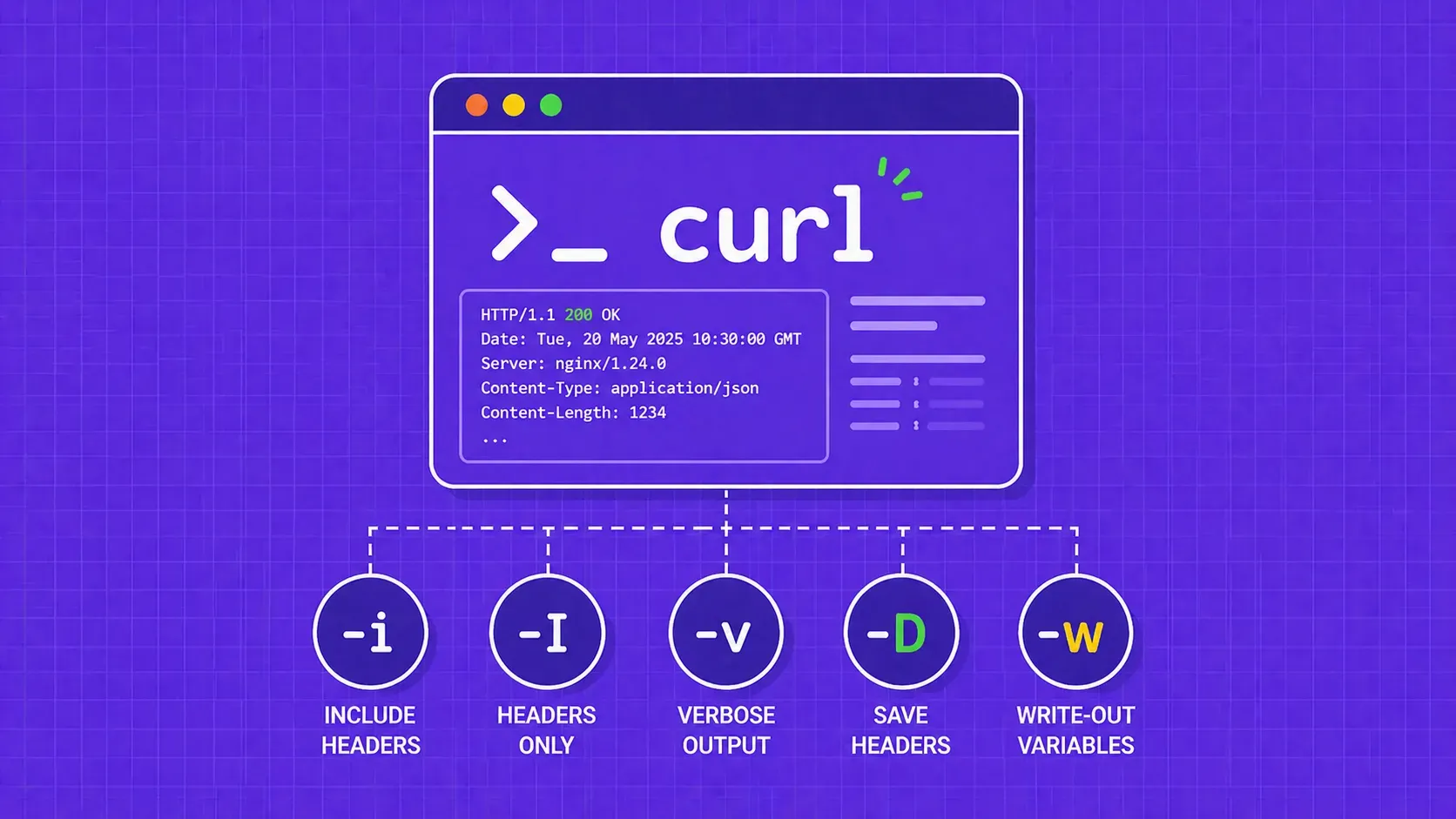
TL;DR: cURL hides response headers by default. Use-ito see headers alongside the body,-Ifor a HEAD request that returns headers only,-vfor full request/response debugging, and-Dto save headers to a file. For modern scripting, cURL 7.83+ lets you extract individual headers or dump all of them as JSON with the-wwrite-out option.
Introduction
HTTP response headers are the metadata a server sends back with every response, covering everything from content type and caching policies to rate-limit counters and security directives. When you are debugging a flaky API, verifying that a CDN is serving the correct cache headers, or checking whether a site sets the right CORS policy, the first tool most developers reach for is cURL.
By default, cURL only prints the response body to stdout, which means you need to explicitly ask for HTTP response headers in cURL before you can see them. The challenge is that cURL offers at least half a dozen flags and techniques for displaying those headers, and each one is optimized for a different workflow. Should you reach for -i, -I, -v, or -D? What about the newer -w write-out variables that let you pull a single header by name or export every header as JSON?
This guide walks through every approach to viewing HTTP response headers in cURL, from the simplest one-liner to automation-friendly scripting recipes, so you can pick the right tool for the job without memorizing every man page section.
Why Response Headers Matter for Debugging and Scraping
Every HTTP response carries a set of headers that tell the client how to interpret the payload. A Content-Type header that says application/json means one thing; text/html means another. Beyond the basics, headers expose caching behavior (Cache-Control, ETag), authentication requirements (WWW-Authenticate), rate-limit state (X-RateLimit-Remaining), and security policies (Strict-Transport-Security, Content-Security-Policy).
For web scraping practitioners, response headers are especially revealing. They can tell you whether a server is compressing its responses, whether your requests are being redirected through a chain of intermediary URLs, or whether you are about to hit a rate limit. That is why learning to inspect HTTP response headers in cURL quickly and accurately is a foundational skill for anyone working with HTTP at the command line.
How to View HTTP Response Headers in cURL: Quick-Reference Table
Before diving into examples, here is a comparison table you can bookmark. It maps each flag to its behavior and the scenario where it is most useful when you need to display HTTP response headers in cURL.
|
Flag / Technique |
What It Does |
Best For |
|---|---|---|
|
|
Prints response headers + body together |
Quick visual inspection of a response |
|
|
Sends a HEAD request, prints headers only |
Fast header check when you do not need the body |
|
|
Shows full request and response, including TLS handshake |
Deep debugging of the entire HTTP transaction |
|
|
Saves response headers to a file |
Logging headers separately from the body |
|
|
GET request, prints only headers to stdout |
When HEAD responses differ from GET |
|
|
Extracts a single header by name (cURL 7.83+) |
Scripted checks on one specific header |
|
|
Outputs all headers as JSON (cURL 7.83+) |
Piping headers into |
Pick the row that matches your workflow, then read the corresponding section below for details and examples.
Display Response Headers Alongside the Body (-i)
The simplest way to see HTTP response headers in cURL is the -i flag (long form: --include). It tells cURL to prepend the full set of response headers to the body output, separated by a blank line.
curl -i https://httpbin.org/getThe output starts with the status line (HTTP/1.1 200 OK), followed by each header on its own line, then a blank line, and finally the response body. This is a GET request, not a HEAD request, so you get the real response the server would serve to a browser.
Use -i when you want a quick look at both headers and body in a single terminal command. The downside is that the headers and body are mixed into one stream, which makes it harder to parse programmatically. For scripting, one of the later techniques (like -D or -w) is usually a better fit.
Retrieve Only Response Headers (-I and --head)
When you just need the headers and do not care about the body at all, use -I (or its equivalent long form, --head). Both flags send an HTTP HEAD request, which asks the server for headers only.
curl -I https://httpbin.org/getThe output is just the status line plus headers. No body, no extra noise. The --head spelling does the same thing but reads more clearly in shell scripts, making your intent obvious to anyone reviewing the code.
One caveat: a HEAD response is not always identical to a GET response. Some servers return different headers (or skip certain headers entirely) for HEAD requests. If you are troubleshooting a header that only appears on a real GET, this flag will mislead you.
Print Only Headers on a GET Request
The workaround is the -s -o /dev/null -D - technique, which sends a full GET request but discards the body and prints only the response headers to stdout:
curl -s -o /dev/null -D - https://httpbin.org/getHere is what each piece does: -s silences the progress meter, -o /dev/null sends the body to nowhere, and -D - writes the headers to stdout (the dash means "stdout" instead of a filename). This gives you the actual GET headers without the noise of the body, and it is an essential pattern when you need accurate HTTP response headers in cURL but HEAD is unreliable.
Inspect Full Request and Response with Verbose Mode (-v)
Verbose mode is the Swiss Army knife for HTTP debugging. The -v (or --verbose) flag makes cURL print the complete transaction: TLS handshake details, request headers, response headers, and the body.
curl -v https://httpbin.org/getIn the output, lines prefixed with > are the request headers your client sent, lines prefixed with < are the response headers the server returned, and lines prefixed with * are informational messages from cURL itself (connection info, TLS negotiation, etc.).
To reduce noise, combine -v with -s to suppress the progress meter. If you want to capture just the header lines from verbose output in a script, you can redirect stderr (where -v writes its debug info) and filter:
curl -vs https://httpbin.org/get 2>&1 | grep '^<'This pipes both stdout and stderr together, then keeps only the lines starting with <, giving you a clean list of response headers from the cURL verbose output. It is great for quick one-off debugging, though for production scripting you will want the more structured approaches covered next.
Save Response Headers to a File (-D)
The -D flag (short for --dump-header) writes response headers to a file instead of stdout. Combine it with -o to save the body separately:
curl -D headers.txt -o body.html https://example.comAfter this runs, headers.txt contains every response header and body.html contains the page content. This is ideal for logging, where you want to archive headers and body side by side for later review.
For timestamped logging (useful in monitoring scripts), generate the filename dynamically:
curl -D "headers_$(date +%Y%m%d_%H%M%S).txt" -o /dev/null https://example.comEach run creates a new file like headers_20240615_143022.txt, so you can track how HTTP response headers in cURL change over time. Pair this with a cron job and you have a lightweight header monitor without any third-party tooling.
Extract Specific Headers with grep and awk
Sometimes you only care about one header, like Content-Type or X-RateLimit-Remaining. Piping cURL output through standard Unix tools gets you there fast.
Pull a single header by name with case-insensitive grep:
curl -sI https://httpbin.org/get | grep -i "content-type"To isolate just the value (without the header name), add cut or awk:
curl -sI https://httpbin.org/get | grep -i "content-type" | cut -d':' -f2- | xargsThe cut command splits on the colon and keeps everything after it, while xargs trims the surrounding whitespace. Alternatively, awk can do it in one shot:
curl -sI https://httpbin.org/get | awk -F': ' '/^[Cc]ontent-[Tt]ype/ {print $2}'Watch out for partial name matches. Grepping for Content would also match Content-Length, Content-Encoding, and anything else that starts the same way. Always match the full header name followed by a colon to avoid false positives.
Modern Header Extraction with -w (cURL 7.83+)
Starting with approximately version 7.83 (released in early 2022), cURL introduced two write-out variables that simplify extracting HTTP response headers in cURL scripts: %header{name} for a single header and %{header_json} for all headers as JSON.
Extract one header cleanly, with no need for grep:
curl -s -o /dev/null -w '%header{content-type}' https://httpbin.org/getThis prints only the value of the Content-Type header. No parsing, no pipes, no regex.
To get every response header as a JSON object, use:
curl -s -o /dev/null -w '%{header_json}' https://httpbin.org/getThe output is valid JSON, which means you can pipe it directly into jq for pretty-printing or field extraction:
curl -s -o /dev/null -w '%{header_json}' https://httpbin.org/get | jq '.["content-type"]'When duplicate header names appear (like multiple Set-Cookie headers), cURL groups them on the first occurrence and collects all values into a JSON array, so you never lose data.
One important note: these write-out variables require cURL 7.83 or later. Run curl --version to check yours. If you are on an older version, the grep/awk approach from the previous section remains your best option.
Scripting and Automation Recipes
Once you can extract HTTP response headers in cURL, the next step is building repeatable workflows around them. Here are three patterns that work well for auditing headers at scale.
Audit a specific header across multiple URLs:
while IFS= read -r url; do
  val=$(curl -s -o /dev/null -w '%header{strict-transport-security}' "$url")
  echo "$url → $val"
done < urls.txt
Feed a file of URLs and get a quick report of which ones set the Strict-Transport-Security header.
Monitor header changes over time with diff:
curl -sI https://example.com > /tmp/headers_prev.txt
# ... wait, or run via cron ...
curl -sI https://example.com > /tmp/headers_now.txt
diff /tmp/headers_prev.txt /tmp/headers_now.txt
Wrap this in a cron job and send the diff output to a Slack webhook or email. It is a simple way to detect unexpected configuration changes.
Create a shell alias for frequent checks:
alias hcheck='curl -s -o /dev/null -D - -w "\n"'Now you can type hcheck https://example.com to quickly dump response headers from any URL with a clean GET request.
Troubleshooting Common Header Issues
Even straightforward header inspections can go sideways. Below are three situations you are likely to encounter when working with HTTP response headers in cURL, along with the flags that fix them.
SSL Certificate Errors
If cURL refuses to connect because of a certificate issue, you can bypass verification with -k (or --insecure):
curl -kI https://self-signed.example.comUse this only in development or internal testing environments. In production, the better fix is to supply the correct CA bundle with --cacert /path/to/ca-bundle.crt so the connection is actually verified.
Redirect Chains and Missing Headers
By default, cURL does not follow redirects. If a URL returns a 301 or 302, you only see the headers from that initial response. Add -L (or --location) to follow the chain:
curl -LI https://example.comTo capture the headers at every hop (not just the final destination), combine -L with -D:
curl -L -D all_headers.txt -o /dev/null https://example.comThe file all_headers.txt will contain header blocks from each redirect, separated by blank lines. You can also set --max-redirs 5 to cap the number of hops and avoid infinite loops.
Character Encoding and Compression
Many servers compress responses with gzip or Brotli, which can make raw body output look like garbage. The --compressed flag tells cURL to send the appropriate Accept-Encoding header and automatically decompress the response:
curl --compressed -i https://example.comThis does not change the headers themselves, but it ensures you can read the body alongside them. If you are only inspecting headers, compression is a non-issue, but it matters when you combine -i to view both.
Key Takeaways
- Use
-ifor quick visual checks that show response headers inline with the body, and-Iwhen you only need headers from a HEAD request. - The
-s -o /dev/null -D -pattern is essential when HEAD responses differ from GET: it gives you real GET headers without body noise. - Verbose mode (
-v) is the deepest tool in your arsenal, showing request headers, response headers, and TLS details in one shot. - cURL 7.83+ write-out variables (
%header{name}and%{header_json}) eliminate the need for grep/awk pipelines and integrate cleanly with JSON-based workflows. - Combine
-Lwith-Dto capture headers from every redirect hop, and always check your cURL version before relying on newer features.
FAQ
What is the difference between curl -i and curl -I?
curl -i sends a standard GET request and includes the response headers above the body in the output. curl -I sends a HEAD request, which returns only headers with no body at all. The lowercase -i gives you the complete response; the uppercase -I is faster but may return different headers than a real GET on some servers.
How can I output cURL response headers as JSON?
Use the -w '%{header_json}' write-out variable, available in cURL 7.83 and later. Run curl -s -o /dev/null -w '%{header_json}' <URL> to get a valid JSON object containing every header. Pipe the result into jq for pretty-printing or field extraction. Duplicate headers are automatically grouped into JSON arrays.
How do I view response headers in PowerShell using curl?
On Windows, curl in PowerShell is an alias for Invoke-WebRequest. Run (Invoke-WebRequest -Uri "https://example.com" -Method Head).Headers to see a hashtable of response headers. If you want the actual cURL binary, call curl.exe -I https://example.com to bypass the alias and use the same flags described in this guide.
How do I see headers for every redirect in a chain with cURL?
Combine -L (follow redirects) with -D (dump headers) like this: curl -L -D headers.txt -o /dev/null https://example.com. The resulting file will contain separate header blocks for each redirect hop, delimited by blank lines. You can also use curl -Lv to see every hop's headers in real time on stderr.
Conclusion
Inspecting HTTP response headers in cURL is one of those skills that pays off every day once you have it down. For quick checks, -i and -I get you there in a single command. When you need deeper visibility, -v shows the full transaction and -D lets you log headers to files for later analysis. And if you are building automated pipelines, the newer -w write-out variables (available in cURL 7.83+) let you extract headers as clean JSON without any text-processing gymnastics.
The key is matching the right flag to the job. Use the quick-reference table from this guide as your cheat sheet, and build on the scripting recipes to turn one-off commands into repeatable checks.
If your cURL scripts are hitting anti-bot protections, CAPTCHAs, or IP blocks before you even get to inspect headers, WebScrapingAPI can handle the request layer for you, managing proxy rotation and block avoidance behind a single API endpoint so you can focus on the data instead of the infrastructure.
About the Author

Suciu Dan
Co-founder
Suciu Dan is the co-founder of WebScrapingAPI and writes practical, developer-focused guides on Python web scraping, Ruby web scraping, and proxy infrastructure.